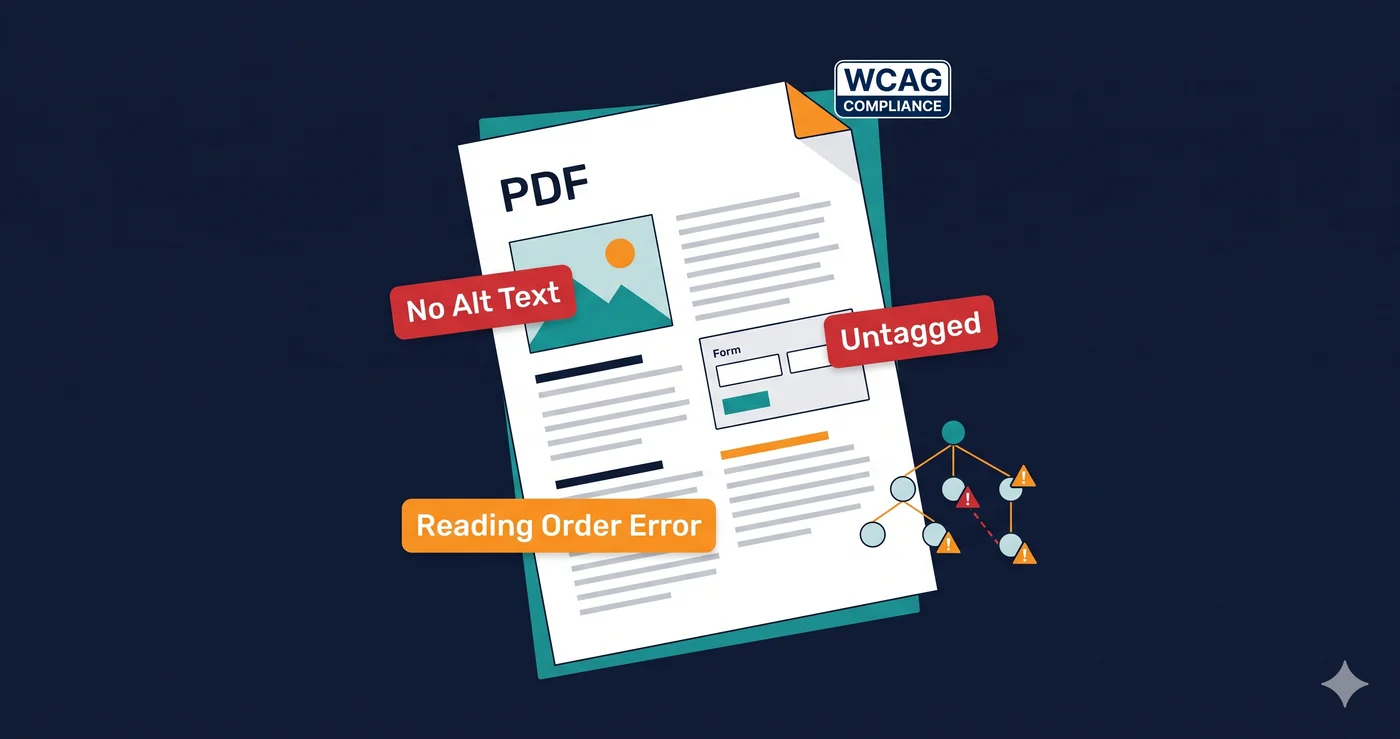
Plaintiff firms scanning for ADA violations don't stop at your homepage. They download PDFs — your return policy, product spec sheets, application forms, and downloadable guides — and run them through accessibility checkers. An untagged PDF is a silent liability sitting in your document library, and unlike an HTML element, it probably hasn't appeared in a single accessibility sprint.
The DOJ's ADA Title II final rule explicitly defines "web content" to include electronic documents — meaning every PDF linked from a government website must meet WCAG 2.1 Level AA. For private businesses under Title III, enforcement actions and settlement agreements have cited inaccessible PDFs as grounds for claims. An ada compliance pdf checker closes a gap that most teams leave entirely unaddressed.
Here's how PDF accessibility testing works, which tools to use, what automated checkers cannot catch, and what to do when violations are found.
Why PDFs Fail ADA Compliance Checks
A PDF that looks perfectly readable on screen can be completely inaccessible to screen readers and other assistive technologies. Screen readers don't render what's visually displayed — they read what's encoded in the document's underlying tag structure. If that structure doesn't exist, or is wrong, a screen reader encounters either silence or a completely disordered stream of content.
The most common ada compliance failures in PDF documents:
Missing tags — Untagged PDFs have no structural tree. Screen readers cannot determine reading order, identify headings, or distinguish body text from table data. The document is effectively inaccessible to blind users regardless of how well it looks.
Missing alt text on images — Every image in a PDF that conveys information needs an alt attribute set in its tag properties. Decorative images must be marked as Artifacts so screen readers skip them. Most PDFs exported from Word or InDesign without accessibility review contain zero image alt text.
Incorrect reading order — Multi-column layouts, sidebars, pull quotes, and complex table structures often export in the wrong tag order. A screen reader user navigating by reading order encounters content in a jumbled sequence — footnotes before the body text they reference, table cells read column-by-column instead of row-by-row.
Missing document language — The Lang attribute in document metadata must specify the document's primary language. Without it, screen readers apply the system default language, which may mispronounce content entirely.
Untagged form fields — Interactive PDF forms must have field tags with accessible descriptions. An unlabeled PDF form field is the document equivalent of an unlabeled HTML ``: the screen reader user has no indication of what information to enter.
No document title in metadata — The document title must be set in properties and configured to display as the window title. Screen reader users rely on the document title when switching between open documents or navigating a document library.
ADA Compliance PDF Checker Tools Compared
| Tool | Type | Standard | Cost | Best For |
|---|---|---|---|---|
| PAC 2026 (PDF Accessibility Checker) | Desktop app | PDF/UA + WCAG 2.1 | Free | Comprehensive machine testing |
| axesCheck | Online (browser) | PDF/UA + WCAG | Free | Fast single-document check |
| Adobe Acrobat Pro | Desktop app | WCAG 2.1 | Paid (~$20/mo) | Check + remediation in one tool |
| CommonLook PDF Validator | Desktop | Section 508 + WCAG | Paid | Federal procurement documents |
| Tingtun PDF Checker | Online | WCAG 2.0/2.1 | Free | Lightweight online verification |
PAC 2026 is the most widely used free desktop ada compliance pdf checker. It has been the global standard since 2010, and the 2026 version adds AI-assisted checks that reduce the amount of manual inspection required. PAC tests against both PDF/UA (ISO 14289, the international standard for accessible PDFs) and WCAG 2.1, producing a detailed checkpoints report with pass/fail results by criterion.
axesCheck is the browser-based version of PAC — upload a PDF and get results in under a minute without installing any software. It's the fastest zero-setup option for a single-document first pass.
Adobe Acrobat Pro is the only tool that combines checking and remediation in one workflow. Its built-in Accessibility Checker flags structural problems; the Reading Order panel and Tags panel let you fix them without exporting to another tool. For teams that regularly produce PDFs and already have Acrobat licenses, this is the most practical starting point.
Section 508 and PDF Accessibility
Section 508 of the Rehabilitation Act requires federal agencies and their contractors to make electronic documents accessible to employees and members of the public with disabilities. For PDFs, Section 508 requires WCAG 2.0 AA compliance at minimum — in practice, agencies now expect WCAG 2.1 AA.
Federal procurement reviewers as of 2025 are scrutinizing accessibility documentation more closely than in prior years, asking specifically how testing was performed, which document versions were tested, and whether there is an active remediation plan (BrowserStack). Vendors submitting PDFs without documented ada compliance pdf checker results are increasingly flagged during procurement review.
The European Accessibility Act (enforcement began June 28, 2025) also requires WCAG 2.1 AA for electronic documents distributed digitally — including bank statements, insurance policy documents, and product manuals provided by covered services.
What Automated PDF Checkers Don't Catch
Every ada compliance pdf checker has the same fundamental limitation: it tests machine-verifiable structural rules, not human comprehension. A document can pass every automated criterion and still be effectively inaccessible to a real user.
Alt text quality — Automated tools verify that alt text exists. They cannot verify that it accurately describes the image. An infographic tagged with alt text "chart" passes the tool. A blind user gets nothing useful from a one-word description.
Reading order logic — Tools verify that a tag order exists, but they cannot determine whether the order makes logical sense. A complex multi-column magazine layout might pass PAC's structural checks while presenting content in an order that's confusing to read linearly.
Complex table headers — Simple one-header-row tables are fully machine-checkable. Complex nested table headers with merged cells — common in financial reports, product comparison sheets, and government forms — require manual inspection.
Graphic-embedded text contrast — Text embedded inside images is outside the scope of PDF accessibility checkers. A product spec sheet with a data visualization using low-contrast axis labels will pass automated checks despite failing WCAG 1.4.3.
Document usability with assistive technology — The ultimate test of a PDF is whether a screen reader user can actually use it. This requires a human tester with NVDA, JAWS, or VoiceOver navigating the actual document, not just a tool report.
What to Do When You Find PDF Violations
PDF violations fall into two categories based on the right remediation path:
Fix in Acrobat Pro — Missing tags, incorrect reading order, missing alt text on images, unlabeled form fields, and missing document language can all be corrected in Adobe Acrobat Pro using the Tags panel, Reading Order tool, and Document Properties dialog. This is appropriate for individual documents that already exist.
Fix at the source — If a PDF is generated regularly from a source file (a Word template, an InDesign layout, a PowerPoint deck), fixing accessibility in Acrobat is a patch that needs to be redone every time a new version is exported. The lasting fix is correcting the source template to include proper heading styles, image alt text, accessible table markup, and accessibility-preserving export settings. Every future export is then accessible by default.
Rather than auditing your PDF library manually, scan your website with a full ada compliance checker to identify which PDFs are actually linked from your pages and appear in your compliance exposure. ADAGuard's website accessibility checker flags linked document issues as part of your overall compliance report. Prioritize the documents flagged on your highest-traffic pages first.
The PDF Accessibility Workflow for Agencies
For web agencies managing accessibility on behalf of clients, PDF violations represent an often-overlooked gap in compliance deliverables. Clients typically hand over a website file for audit but don't think to include their document library.
A complete accessibility engagement should include: - An inventory of all PDFs linked from client pages - An automated pass with PAC or axesCheck on each document - Manual review of the highest-risk documents (forms, multi-column layouts, financial tables) - Source template corrections for recurring document types - Client training on accessibility-preserving export settings
The 30-Second Fix
Run a free scan at adaguard.io — no signup required. The ADAGuard website accessibility checker covers 23 check categories across your live site, including wcag compliance checker rules for linked document structures. In under a minute, you'll know which pages have the highest accessibility liability — and whether your PDF documents are contributing to that score. Start with the scan, then audit the specific documents your report surfaces.