Why DOM-level Scanning is the Only Way to Test React Apps
React builds interfaces that exist only after JavaScript runs. If your WCAG checker reads HTML source, it has never actually seen your app — and your scan results are built on a foundation that isn't there.
React renders a component tree, not a document. The HTML that exists in your source file is a template — an instruction for what to build. The interface your users actually interact with, and the one assistive technology reads, exists only after JavaScript executes, components mount, state resolves, and the DOM populates. Run an accessibility scan against the source, and you are testing an interface that has never existed.
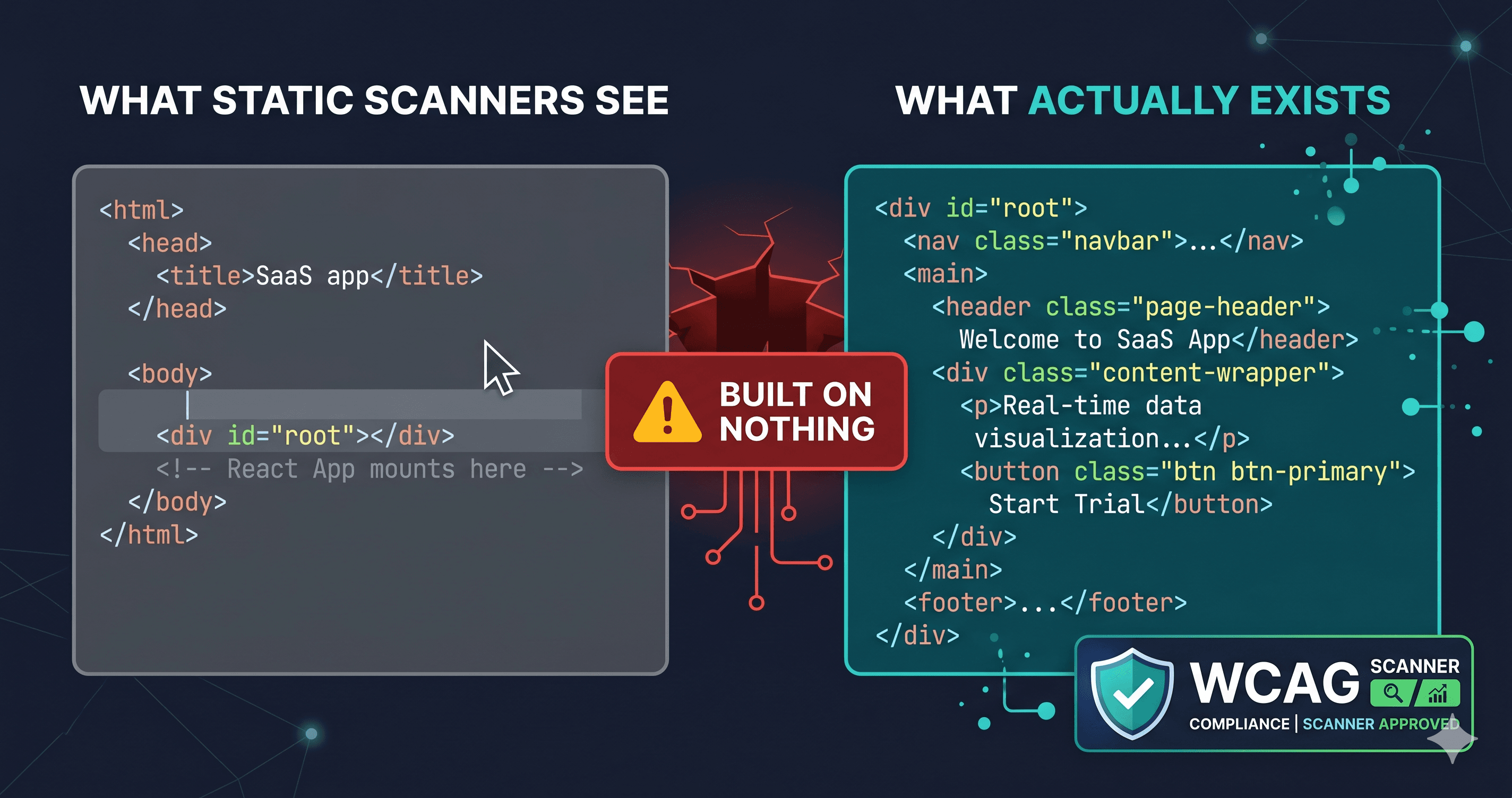
This is the core technical argument for DOM-level scanning on React applications, and the whole design constraint behind a React accessibility checker: a WCAG checker that does not execute JavaScript cannot test a React app. It can test the HTML shell that arrives before React runs, which typically contains a <div id="root"></div> and almost nothing else.
What "Static Scanning" Actually Sees in a React App
When a traditional accessibility scanner fetches a React application, it makes an HTTP GET request and analyzes the response body. For a Create React App (CRA) build or a Vite-bundled SPA, that response body looks roughly like this:
The entire application — every component, every route, every accessible name, every ARIA attribute — is inside that JavaScript bundle. It does not exist in the response body. A source-based scanner performs an accessibility audit on an empty div.
This is not a fringe edge case. It describes the majority of React deployments that do not use server-side rendering.
The Accessibility Checks That Require JavaScript Execution
The violations that matter most in React applications are the ones that only exist after JavaScript runs:
Check Type
What Needs to Run First
Why Static Fails
Modal keyboard traps
User interaction triggers modal mount
Modal doesn't exist in source
ARIA expanded state
Component state controls aria-expanded value
Default state only — actual states never tested
Focus management after actions
JavaScript moves focus on state changes
No state changes occur during static scan
Dynamic error messages
Form validation fires on interaction
Error elements not present in source
AJAX-loaded content
Content fetched after page load
Fetch never executes
Lazy-loaded components
Components mount on scroll or interaction
Components never mount
Route changes in SPAs
React Router renders new views
Only the initial route is ever tested
Accessible live regions
aria-live regions announce dynamic updates
No updates occur to announce
For a React e-commerce application, this list covers the most legally risky elements: checkout step transitions, error handling in payment forms, modal dialogs for size selection or login, cart drawers, filter panels, and toast notifications.
What WCAG 3.0 Says About Single-Page Apps
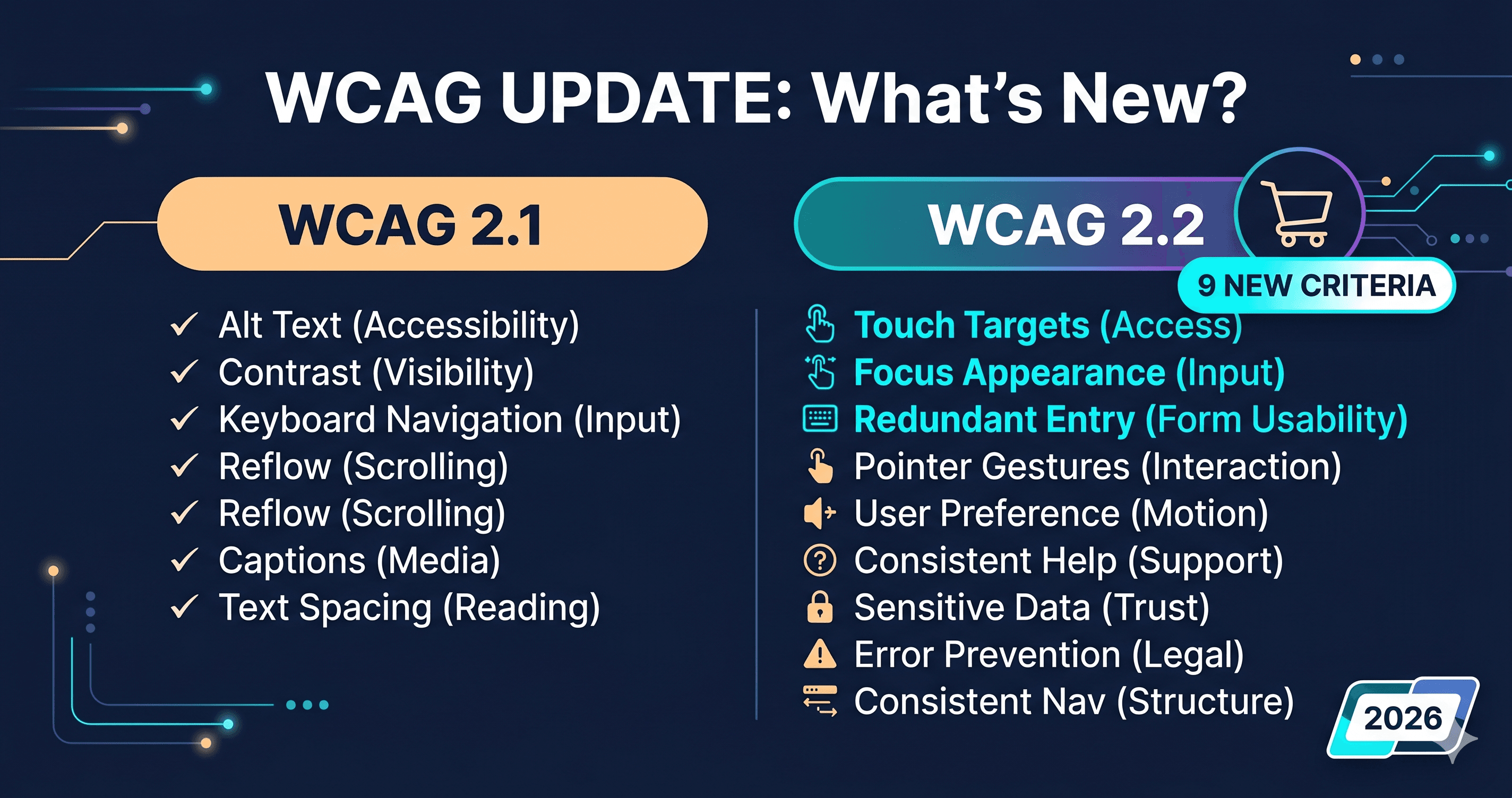
The limitations of source-based scanning are not new, and the W3C has responded. On January 5, 2026, the W3C published an Editor's Draft of WCAG 3.0 that explicitly shifts accessibility guidance from page-centric evaluation to component-level and interaction-level testing. WCAG 3.0 is designed to cover single-page applications, component libraries, and interactive widgets — with accessibility expectations applying at the level of each rendered state, not just the initial HTML document.
This signals where the standard is heading: toward testing what the user encounters during actual interaction, not what the HTML source describes before any interaction has occurred. DOM-level scanning that waits for JavaScript execution and tests interactive states is the methodology that aligns with this trajectory.
The Coverage Gap Between Tools
Not all scanners that claim to test rendered content do so equally. The critical variables are: whether the scanner executes JavaScript, how long it waits for rendering to complete, and whether it tests only the initial DOM state or also triggers interaction-dependent states.
ADAGuard uses headless Chromium via Playwright to load pages, executes JavaScript, waits for dynamic content to stabilize, and then runs its accessibility checks against the fully rendered DOM. This approach captures violations in dynamic components that source-based tools never see.
ADAGuard achieves approximately ~78% WCAG 2.2 AA automated coverage (43 of 55 criteria) by scanning the live DOM. Tools that don't fully render JavaScript, or that test with limited interaction, cover meaningfully less — primarily because of dynamic content, state-driven components, and interaction flows that only appear in the rendered DOM.
For a React SPA, that gap is not distributed uniformly across all checks. It is concentrated in exactly the components that drive the highest accessibility lawsuit risk: modals, drawers, forms, and navigation flows.
How to Test React States That Require User Interaction
DOM-level scanning handles initial render automatically. But some React accessibility violations only appear in specific component states — a modal opened, a form with validation errors, a multi-step wizard at step three. Testing these states requires either:
Authenticated and interaction-triggered scanning. Tools like ADAGuard support scanning authenticated flows, allowing the scanner to navigate through login, reach state-dependent pages, and scan the resulting DOM.
Component-level testing in CI. For development teams, the companion approach is integrating axe-core directly into component tests using React Testing Library and @axe-core/react. This runs accessibility checks against component renders in all tested states — not just the happy path initial state.
Manual testing for interaction chains. For flows that cannot be scripted — multi-step checkout, 2FA flows, session-dependent content — manual testing using a screen reader remains necessary. NVDA on Windows and VoiceOver on macOS are the two screen readers that cover the highest proportion of real screen reader users.
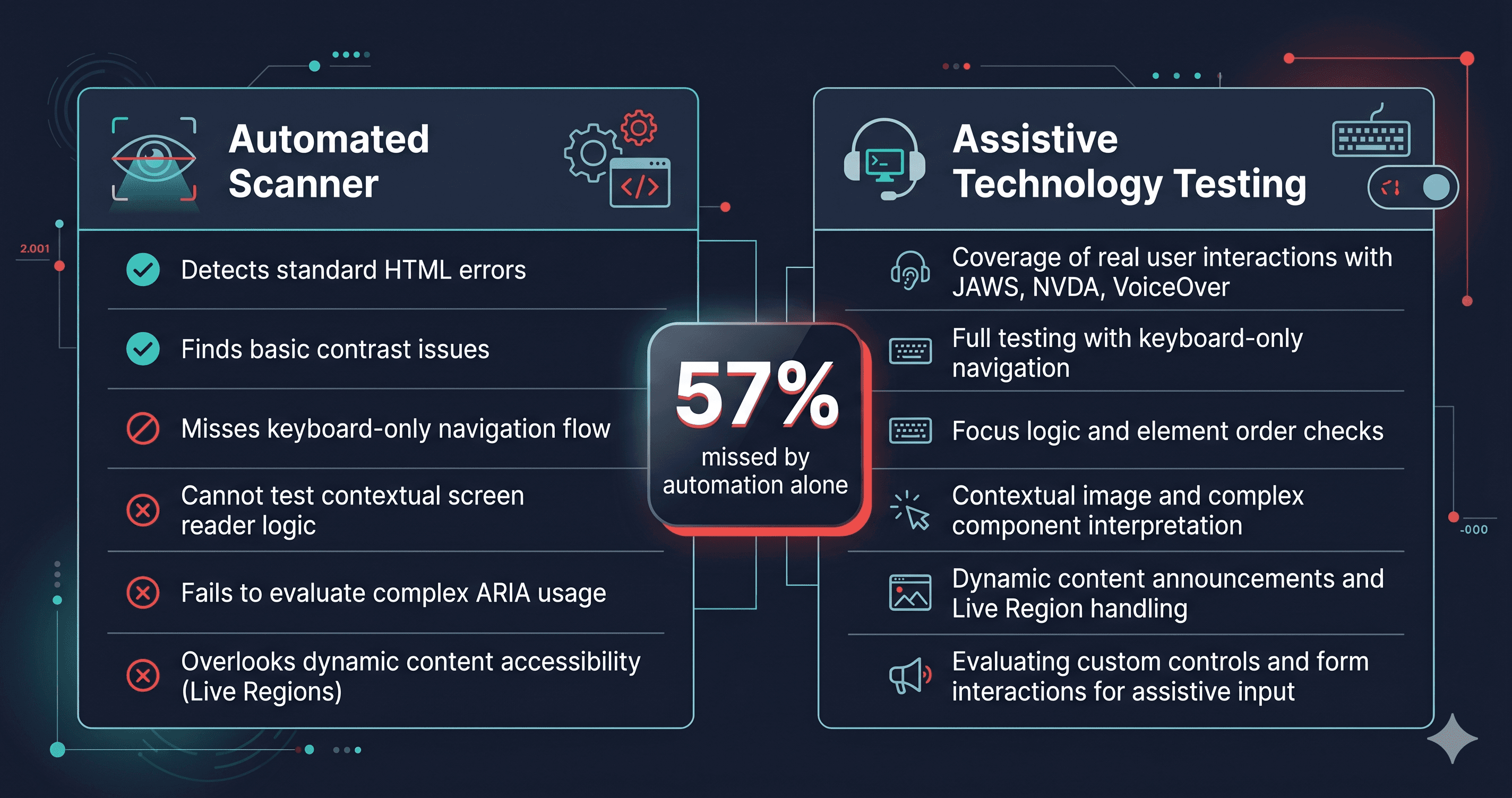
The right testing strategy uses all three layers: DOM-level scanning for the rendered page, component testing in CI for known states, and manual testing for complex interaction chains.
What Developers Get Wrong About React Accessibility
The most common React-specific accessibility mistakes are not detectable by any static scanner:
Programmatic focus mismanagement. When a React component unmounts — a modal closes, a wizard step advances, a toast notification disappears — the browser needs to move focus to a logical next element. React does not do this automatically. If the previous focus target is removed from the DOM, focus lands on ``, leaving keyboard users with no context about where they are. This only manifests during testing when the interaction sequence actually occurs.
ARIA state desync. A button controls an accordion via state: aria-expanded={isOpen}. If the default state in development is false and the scanner runs at initial load, it tests aria-expanded="false" — which is technically correct but never tests aria-expanded="true". The expanded state may have completely different layout that introduces contrast violations, overlapping content, or focus issues.
aria-live regions that never announce.aria-live="polite" regions announce dynamic content changes — cart counts, form submission confirmations, error messages. Static scanning cannot test whether these regions actually fire announcements because no state changes occur. A misimplemented aria-live region produces clean scan results and broken screen reader behavior in production.
What to Do When You Find Violations in a React App
React violations tend to fall into two buckets: violations fixable at the component level (adding an aria-label, correcting a focus management call, fixing an aria-live region) versus violations introduced by a third-party component library (React Select, React Modal, Headless UI).
For third-party library violations, the path is: scan with ADAGuard to identify which specific WCAG criterion is violated, then open an issue with the library maintainer citing the criterion number and the element selector. Library-level fixes propagate to all instances once the maintainer ships a patch.
Don't attempt to fix all violations at once without knowing which ones actually affect your specific implementation. Run a live DOM scan at adaguard.io — free, no signup — and let the report tell you exactly which violations exist in your rendered React app today.
The 30-Second Fix
Open your React app in a browser. Navigate to a page that has a modal or a dynamic component. Run a scan with ADAGuard and note whether violations appear on those components. Then run the same page through a static analyzer. Compare results.
The difference you see is the compliance gap your static scanner has been hiding. Scan your React app at adaguard.io to see what a live DOM scan actually finds.