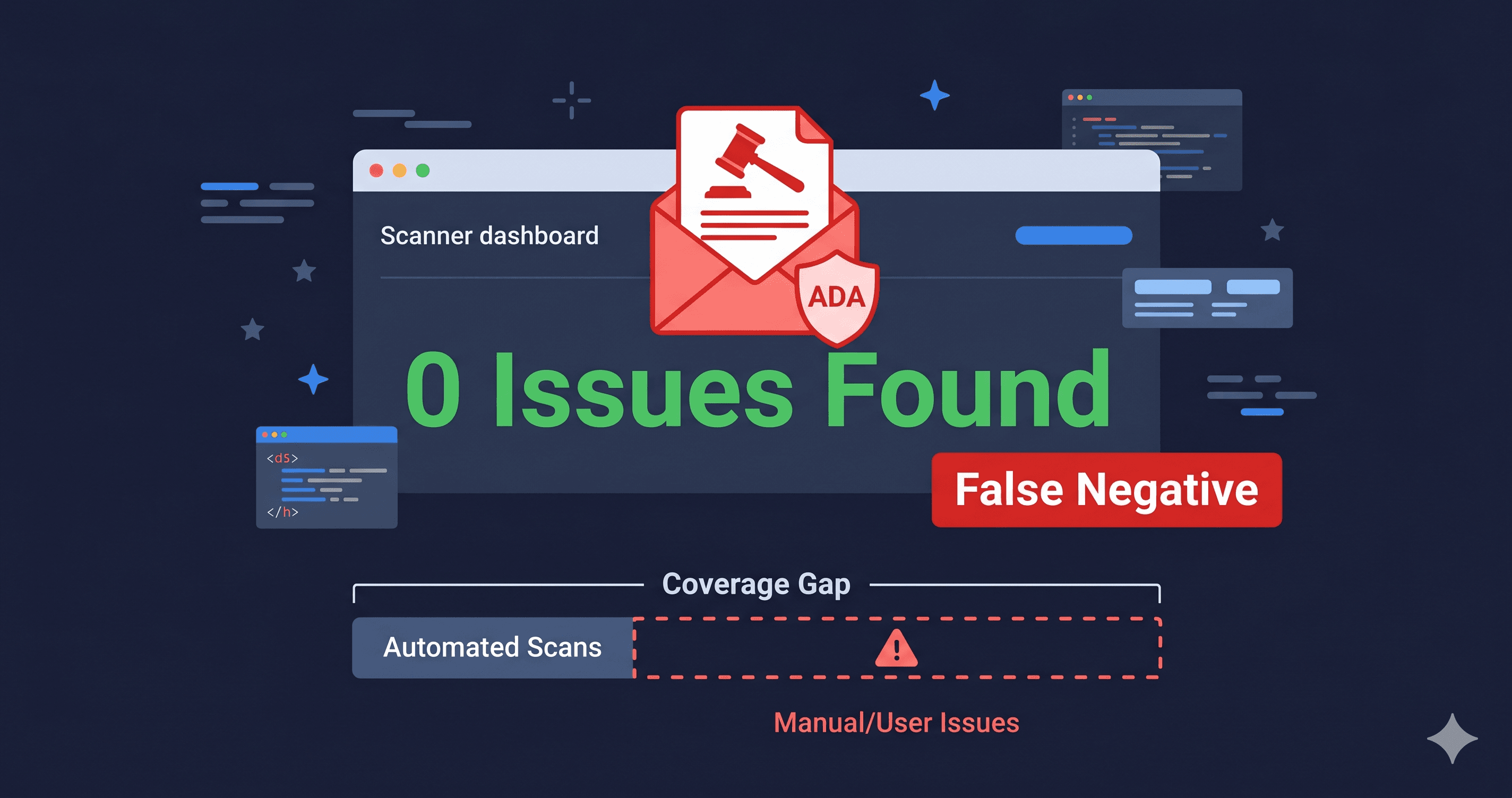
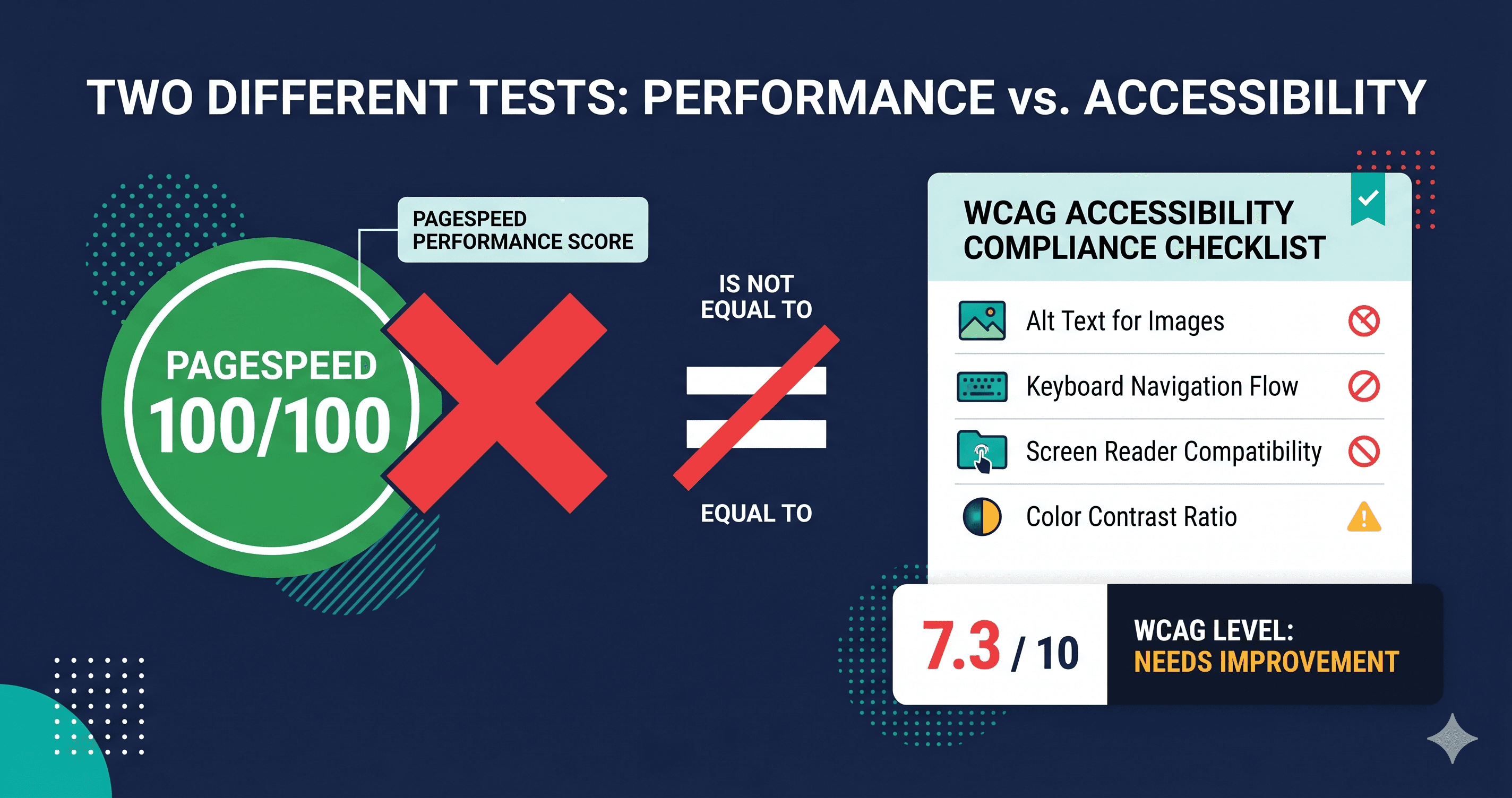
A scan completes in 45 seconds and reports zero violations. Your developer closes the ticket, marks it done, and moves on. Three weeks later, a demand letter arrives citing the exact issues the tool missed.
This is not a hypothetical — it is the defining risk of relying on an accessibility scanner that does not see what disabled users actually encounter. False positives (flags on non-issues) and false negatives (silent misses on real violations) are the two accuracy failure modes of every automated WCAG checker. Understanding which error your tool is making, and why, is the difference between a compliance posture that holds up and one that produces a false sense of safety.
The Two Accuracy Failure Modes in Every Accessibility Scanner
Every automated accessibility scanner operates by pattern matching: it asks whether a page element fits a known violation signature. When the match is right, it flags a violation. When it isn't, it passes. The problem is that WCAG has 78 success criteria at levels A and AA, and pattern matching only works cleanly on a fraction of them.
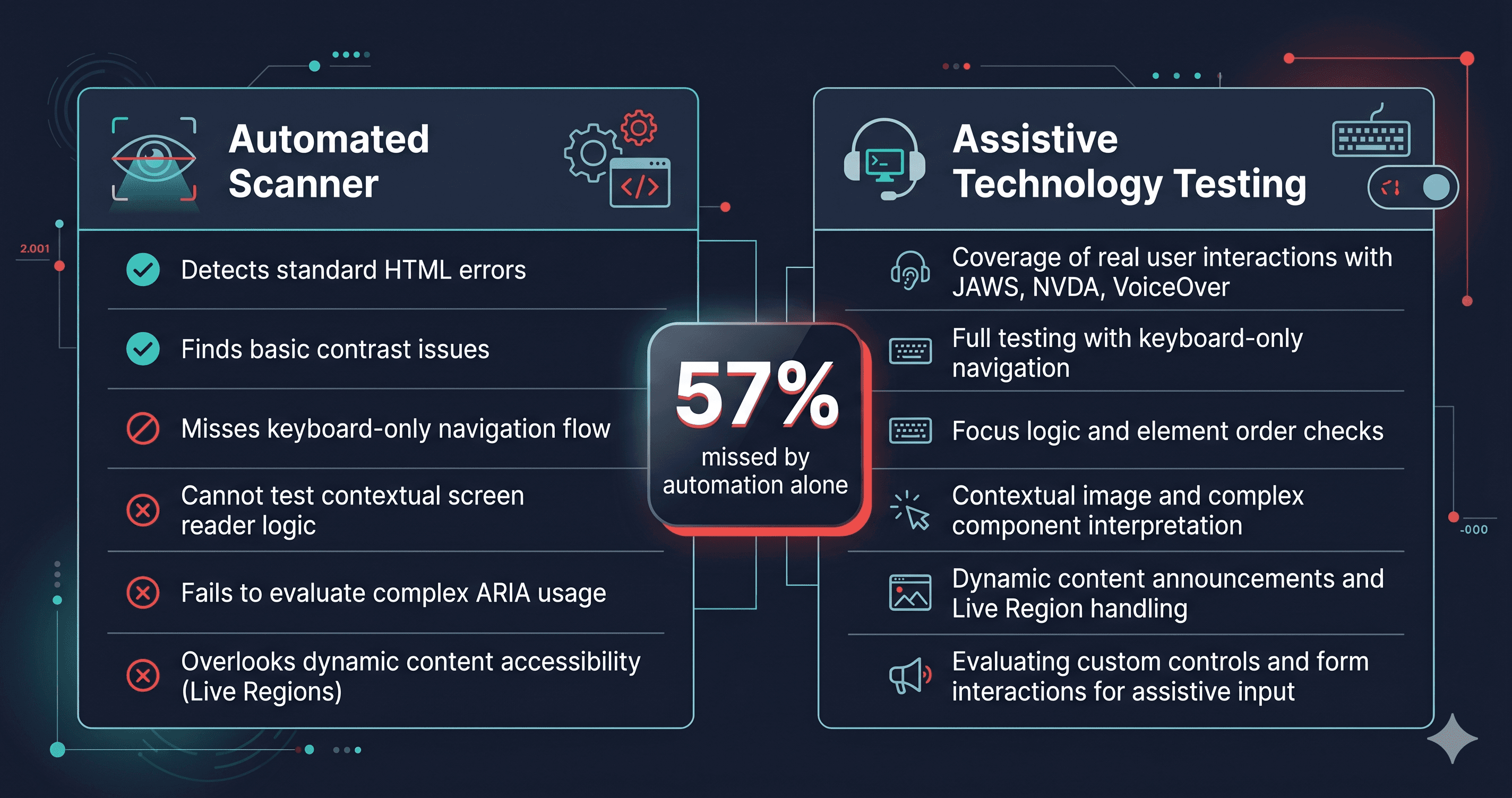
According to Accessible.org's analysis of automated scan reliability, automated WCAG checkers can reliably flag approximately 13% of WCAG criteria — those involving binary, measurable technical requirements with no room for interpretation. For the remaining 87%, tools either produce false positives, false negatives, or return "incomplete" results that require manual verification.
| Failure Mode | What It Means | Real Cost | Primary Cause |
|---|
| False Positive | Flags a non-issue as a violation | Developer time wasted; erodes tool trust | Static analysis without rendering context |
| False Negative | Misses a real violation | Compliance gap + lawsuit exposure | Dynamic content not present at scan time |
| "Needs Review" gap | Cannot determine pass or fail | Backlog of unresolved manual reviews | Ambiguous WCAG criterion requiring judgment |
Of the two core failure modes, false negatives are legally the more dangerous. A false positive costs an afternoon of developer time. A false negative means a real WCAG violation was in your report's green zone — and you deployed it that way.
Why Static Scanners Systematically Miss Dynamic Violations
Here is the technical root cause of most false negatives: the scanner read HTML source instead of the rendered DOM.
Consider a Shopify store using an AJAX cart drawer. When the page first loads, the cart drawer HTML does not exist — it is injected into the DOM when a user clicks "Add to Cart." The ARIA label on the close button, the keyboard focus trap, the aria-live announcement — none of these are in the initial HTML source.
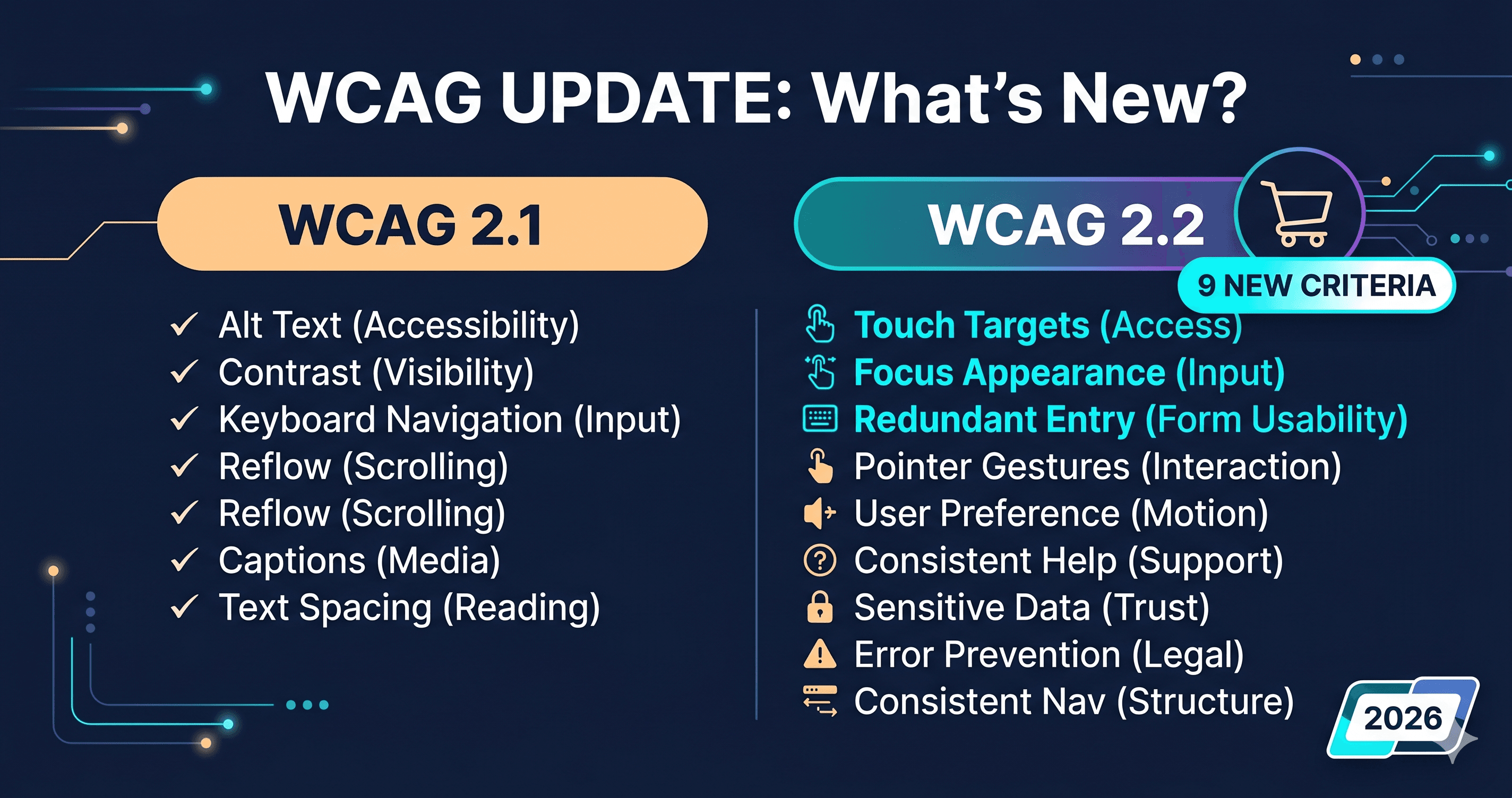
A static scanner reads the source. It sees no cart drawer. It reports no issues with the cart drawer. Your report shows green. Meanwhile, a blind user navigating by keyboard clicks the close button and cannot exit the modal — a WCAG 2.1 criterion 2.1.2 (No Keyboard Trap) violation. It was always there. The scanner never had the rendered DOM to check.
This pattern repeats across the entire modern e-commerce stack: cookie consent modals, email capture pop-ups, dynamic product filter sidebars, size/color variant selectors, sticky headers that overlap content — all dynamically injected, all invisible to a source-based scan.
The 2026 WebAIM Million report makes the problem visible at scale: 95.9% of the top 1 million home pages had detected WCAG failures — up from 94.8% in 2025, reversing a six-year trend of gradual improvement. The regression coincides directly with rising page complexity; the average home page now contains 1,437 elements, a 22.5% increase in a single year. More dynamic components means more content that static analysis cannot reach.
Where False Positives Actually Appear
False positives are less common but generate real friction. Three patterns produce the majority of them:
Visually-hidden responsive elements. A navigation block hidden via CSS for mobile viewports may be flagged as having an empty or missing accessible name. The scanner does not understand that the element is intentionally non-interactive in that state.
Decorative images with correct empty alt text. WCAG explicitly allows alt="" on purely decorative images — that is the correct implementation. Some older scanners or scanners without full rule fidelity will still flag these, forcing developers to "fix" something that was never broken.
Custom ARIA implementations not matching expected patterns. Accessible form implementations sometimes use aria-labelledby pointing to an off-screen label. A scanner checking only for a visually adjacent `` tag will flag this as unlabeled even though the accessible name is fully provided. The developer then has to determine whether to trust the tool or trust the implementation — and often removes the correct ARIA setup to clear the warning.
Each false positive erodes developer confidence in the scanning process. Teams that are burned by phantom flags stop taking real flags seriously. That trust erosion is itself a compliance risk.
How to Diagnose Whether Your Current Scanner Has a False Negative Problem
Run this test: identify a page on your site that loads a modal, drawer, or pop-up after user interaction. Run your scanner against it. Then check the report for violations related to that component — keyboard traps, focus management, ARIA labels on the close control.
If the component is untested in the report, your scanner ran against the source, not the DOM. It produced a false negative for everything in that component.
This is a particularly acute problem for Shopify merchants, whose most legally risky elements — cart drawers, login popups, size selectors, cookie notices — are almost entirely JavaScript-rendered and invisible to source-based scanning tools.
The ADAGuard Approach to Accuracy
ADAGuard scans against the fully rendered DOM using a headless Chromium instance. Before any accessibility check runs, the scanner waits for JavaScript to execute, dynamic content to mount, and the page's interactive state to stabilize. This eliminates the primary mechanism that creates false negatives in static tools.
For WCAG criteria that require human judgment — alt text quality, meaningful link text, whether an error message is descriptive — ADAGuard returns these as "needs review" rather than forcing a binary pass or fail. This prevents false positives on ambiguous criteria while still surfacing them for manual verification.
The result is a three-state report: confirmed violation, confirmed pass, and needs human review. That distinction is materially more useful than a binary pass/fail that hides the scanner's uncertainty in the green zone.
ADAGuard runs 22 custom check categories on top of axe-core, reaching approximately ~78% WCAG 2.2 AA automated coverage (43 of 55 criteria). The additional coverage comes almost entirely from checks that require DOM rendering: dynamic component states, focus management flows, ARIA live region behavior, and keyboard interaction chains.
Before dismissing any scanner flag as a false positive, go through four steps:
1. Confirm the scan ran against the live DOM, not HTML source. Many online "checkers" fetch the page source through a server-side HTTP request — they never execute JavaScript. If your tool does not explicitly state it renders JavaScript, assume it does not.
2. Test the element with a screen reader. NVDA on Windows and VoiceOver on macOS will tell you definitively whether the element is announced correctly. If the screen reader reads it correctly, the flag is likely a false positive. If it does not, the flag is real.
3. Read the specific WCAG criterion. The success criterion definition at W3C often clarifies edge cases. What looks like a false positive at first sometimes resolves into a real violation when you read the criterion more carefully.
4. Check the scanner's rule documentation. Axe-core publishes its rule definitions openly. If the scanner cites criterion 1.1.1, look up the exact rule condition and determine whether your element genuinely satisfies it.
Only after this process should you mark something as a false positive — and document the reasoning so the next developer does not re-investigate from scratch.
The 30-Second Fix
The fastest way to identify whether your current scanner is producing false negatives is to run a DOM-rendered scan against any page on your site that uses dynamic components — a modal, cart drawer, filter sidebar, or pop-up — and compare the issue count to what a static scan returns.
Run a free scan at adaguard.io — no signup required. ADAGuard renders JavaScript before checking, so the results reflect what a screen reader user actually encounters when interacting with your page, not what the HTML source says when no one is using it.