How to Check ADA Compliance: A 2026 Step-by-Step Guide
Giriprasad Patil·· 7 min read·Technical How-To
Over 4,800 ADA web accessibility lawsuits were filed in the United States in 2025 — a 37% year-over-year increase, according to UsableNet. The majority targeted small and mid-sized businesses. Most of those businesses had no idea they were non-compliant before the demand letter arrived.
The good news: you can check ADA compliance on your own website in under an hour, and the most important step takes under 30 seconds. Here is exactly how to do it.
## What "ADA Compliance" Means for a Website
The Americans with Disabilities Act does not publish a specific web accessibility checklist. What federal courts and DOJ guidance consistently reference is **WCAG 2.1 Level AA** — the Web Content Accessibility Guidelines published by the W3C. Meeting WCAG 2.1 AA is the practical definition of how to check ADA compliance for a website in 2026.
WCAG 2.2 AA is increasingly cited in 2026 guidance, particularly for sites with EU traffic (where the European Accessibility Act mandates EN 301 549, which incorporates WCAG 2.1 and is updating to include 2.2). If you serve EU customers, checking against WCAG 2.2 covers both ADA and EAA obligations simultaneously.
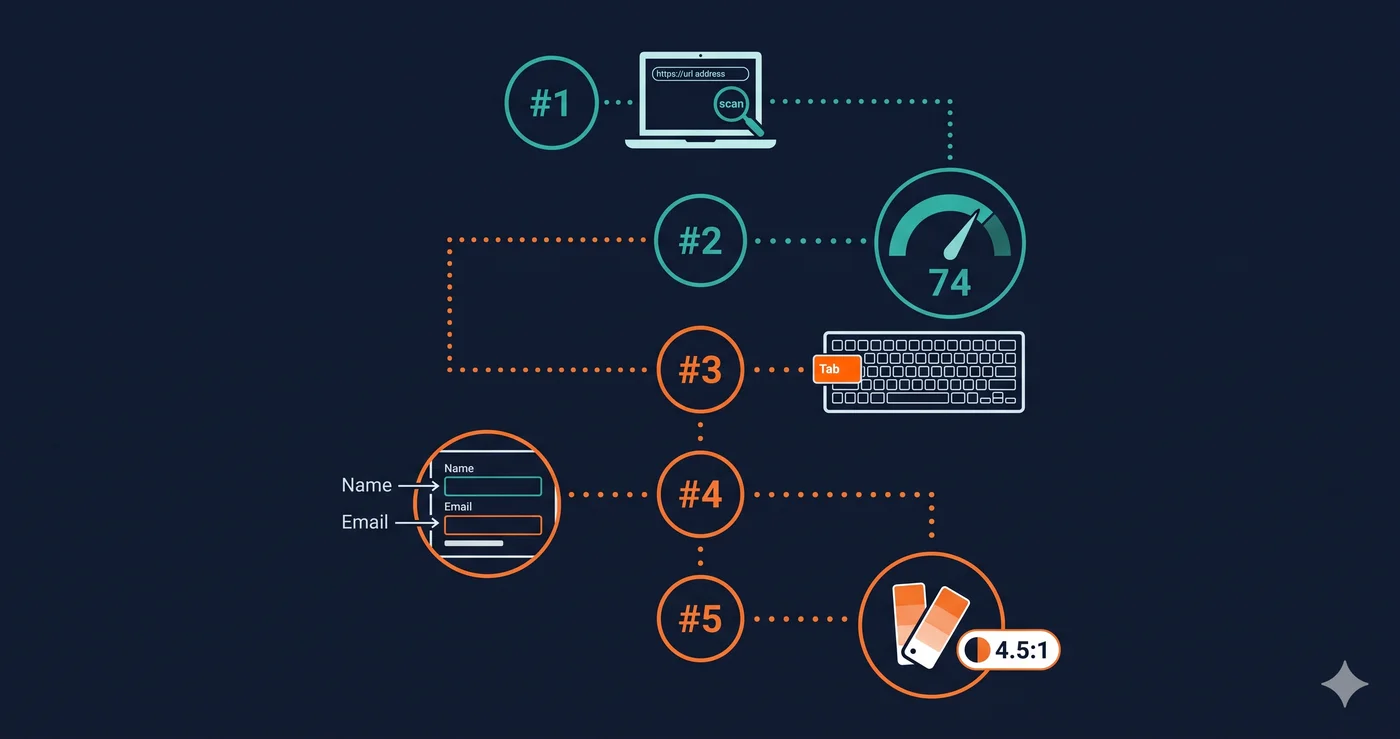
The five steps below cover how to check website ADA compliance comprehensively.
## Step 1: Run an Automated Accessibility Scan
This is where every ADA compliance check starts. An automated scanner crawls your page in a headless browser, tests for hundreds of known accessibility failures, and returns a categorized report in seconds.
**What automated scanners find well:**
- Missing image alt text
- Color contrast failures (the #1 web accessibility violation)
- Form inputs without labels
- Missing page language declaration
- Heading hierarchy violations
- ARIA attribute errors
- Missing skip-to-content links
- Empty link and button text
**What you need to check manually (Step 2–4 below):**
- Whether alt text *meaningfully describes* the image
- Whether the keyboard tab order makes *logical sense*
- Whether dynamic content updates are announced by screen readers
The fastest way to start: paste your URL at [adaguard.io](https://www.adaguard.io) — no account or signup required. The ada compliance check runs in under 30 seconds. ADAGuard's scanner covers approximately **78% of WCAG 2.2 AA criteria** automatically, catching significantly more than standard tools like Lighthouse (~42%) or WAVE (~40%).
For each failure, you'll get the WCAG criterion number, a description of the issue, the specific element, and its impact level. That report is your ADA compliance checklist for the issues your site actually has.
## Step 2: Test Keyboard Navigation
Close your mouse. Navigate your entire website using only the Tab key, Shift+Tab, Enter, Space, and arrow keys.
Every interactive element on your site — links, buttons, form fields, modals, dropdowns, carousels — must be reachable and operable by keyboard alone. This is WCAG 2.1 criterion 2.1.1 (Keyboard) and is one of the most commonly cited violations in ADA lawsuits.
| Keyboard Test | What to Check | Pass Condition |
|---|---|---|
| Tab through page | Reaches every link, button, form field | Nothing is skipped or unreachable |
| Focus visibility | Can you see where focus is at all times? | Visible focus indicator on every element |
| Modal behavior | Opening a modal: does focus move into it? | Focus trapped inside while modal is open |
| Modal close | Press Escape or activate close button | Focus returns to triggering element |
| Dropdown menus | Arrow keys navigate options | No mouse required to select an item |
| Skip link | Tab once from top of page | Skip-to-content link appears and functions |
A keyboard trap — where a user can tab *into* a modal or component but cannot tab *out* — is a WCAG 2.1.2 failure and appears frequently in demand letters related to chat widgets, video players, and third-party popups.
## Step 3: Test with a Screen Reader
Approximately **7.6 million Americans have a visual disability** (American Community Survey), and a significant portion use screen readers to browse the web. Screen reader testing is the manual check that most closely matches the experience of those users.
You do not need professional accessibility expertise to run a basic screen reader test. Here is a simple protocol:
1. **On Mac:** Enable VoiceOver (Cmd+F5). Navigate your home page, product page, and checkout flow using VoiceOver commands.
2. **On Windows:** Download NVDA (free at nvaccess.org). Test the same key pages with NVDA and Firefox.
3. **Listen for:** Are images announced with meaningful descriptions? Are form fields announced with their labels? Are error messages announced when a form fails? Are buttons described by what they do, not just "button"?
Screen reader testing reveals failures that automated scanners rate as passing — particularly label quality, meaningful link text, and ARIA implementation errors that technically pass syntax checks but behave incorrectly in practice.
## Step 4: Check Color Contrast and Visual Presentation
Color contrast failures appear on **83.6% of websites** (WebAIM Million). Most are not caught during design review because designers use Figma on calibrated monitors with perfect eyesight — not the conditions your users with cataracts or color blindness experience.
WCAG 2.1 AA requires:
- 4.5:1 ratio for normal text (under 24px)
- 3:1 ratio for large text (24px or 18pt bold)
- 3:1 ratio for UI components (form borders, focus rings, icons)
You can check individual color combinations at webaim.org/resources/contrastchecker, but this misses dynamic states — placeholder text, disabled buttons, error messages, and hover states. A full ada compliance check via an automated scanner like ADAGuard tests these across your live rendered page.
Beyond contrast, check that:
- Content is still readable when browser zoom is set to 200%
- Text reflows without horizontal scrolling at 320px viewport width (WCAG 1.4.10)
- Your site does not rely on color alone to convey information — error states, required fields, and status indicators need non-color cues as well
## Step 5: Verify Documents, Forms, and Third-Party Content
PDF documents, embedded forms, video content, and third-party widgets are where many sites have hidden ADA compliance exposure.
**PDFs:** Scanned PDFs are images with no extractable text — unreadable by screen readers. Any PDF linked from your site should be tagged and readable by assistive technology. The DOJ has explicitly targeted inaccessible PDF forms in ADA enforcement actions.
**Video:** WCAG 1.2.2 requires captions for all pre-recorded video content. Auto-generated YouTube captions have historically been inaccurate enough to fail compliance review. If your site has embedded video, review whether captions are accurate — not just present.
**Third-party widgets:** Live chat buttons, cookie consent banners, newsletter popups, and review widgets are some of the most frequently cited accessibility failures in demand letters. These are often beyond your direct code control. Your ADA compliance checklist must include these, because courts don't grant liability exceptions for third-party code — you chose to put it on your site.
## How to Use Your ADA Compliance Checklist Results
Once you have scan results from Step 1 and manual findings from Steps 2–4, organize violations by:
1. **Severity** — Critical violations are the highest litigation risk. Fix these first.
2. **Owner** — Your code vs. vendor/third-party code. File support tickets for vendor-owned failures immediately with the specific WCAG criterion number from your report.
3. **Fix effort** — Some violations (missing alt text, missing `lang` attribute) take minutes. Others (structural ARIA refactors, video captioning) take longer. Estimate and prioritize.
Document everything. Dated scan reports, developer task tickets, and vendor correspondence are your evidence of good-faith compliance effort — relevant if a lawsuit proceeds despite your remediation.
## How Often Should You Check ADA Compliance?
After every significant deployment. Accessibility violations are introduced through code changes, theme updates, and new third-party integrations the same way other regressions are. A quarterly ada compliance check is a minimum; a post-deploy automated scan is the professional standard.
New content also introduces accessibility failures. If your CMS editors are adding images without alt text, or your marketing team is embedding video without captions, those are ongoing failure sources that no single scan permanently resolves.
## The 30-Second Fix
The first step to knowing how to check ADA compliance on your site costs nothing and takes 30 seconds. Paste your URL at [adaguard.io](https://www.adaguard.io) — no account, no credit card. The website accessibility checker returns a full report with your compliance score, every violation categorized by WCAG criterion, and the specific elements that need attention.
That report is your ADA compliance checklist for what's actually wrong on your site — not a generic list of things that might be wrong.
Check your site now. If 83.6% of websites fail basic accessibility requirements, the odds are you have failures you haven't found yet.