Most accessibility scanners stop at the login screen.
You point them at your URL. They scan your homepage, pricing page, and marketing copy. They generate a compliance report. You feel good about it.
But 80% of your actual product — the dashboard, the settings pages, the user flows — was never scanned at all.
If you run a SaaS app, a member portal, an employee intranet, or any product that requires authentication, your public-facing pages are the least important thing to scan. The application itself — the part your users actually spend time in — is where the accessibility violations live, and where the legal exposure is highest.
This post explains why standard tools fail at authenticated scanning, and how to do it properly.
Why Accessibility Compliance Doesn't Stop at the Login Page
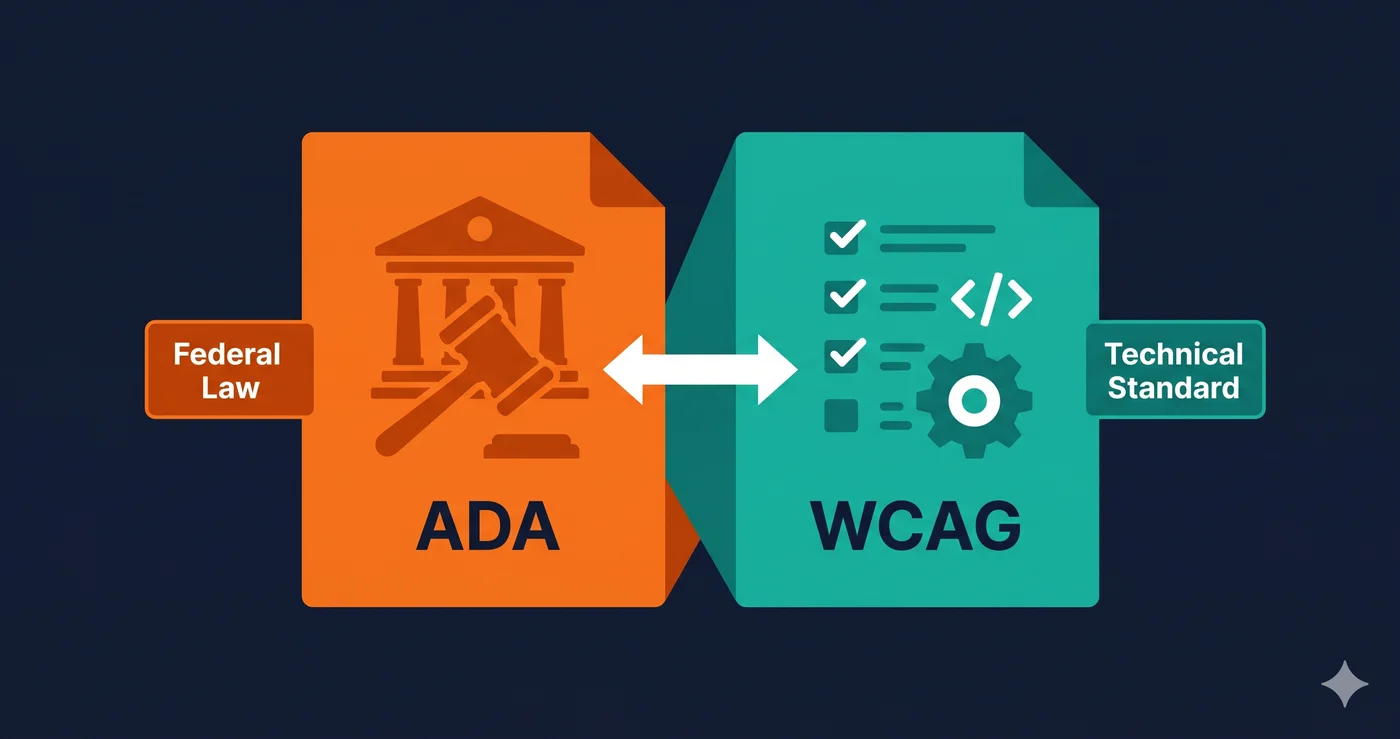
The ADA's Title III and WCAG 2.1 AA don't make exceptions for pages behind login screens.
If a user with a disability subscribes to your SaaS product and can't use the dashboard because it fails keyboard navigation — that's a violation, regardless of whether the homepage is perfectly accessible.
For state and local government entities, the DOJ's 2024 Title II Final Rule explicitly covers web applications, not just marketing sites — though that rule doesn't bind private businesses. For private SaaS companies, recent case law has moved firmly toward holding companies accountable for the accessibility of their entire web presence under Title III, including authenticated sections.
> 🔑 Key point: A clean scan of your public pages while your app dashboard has 47 critical violations is not a compliance strategy. It's a false sense of security.
Why Standard Accessibility Scanners Can't Scan Behind Logins
Most accessibility tools work like this:
- You give them a URL
- They send an HTTP request or open a headless browser
- They scrape the returned HTML
- They run checks against that HTML
This works fine for public pages. It fails completely for authenticated content because:
The redirect problem: Navigate to /dashboard without an active session and you get redirected to /login. The scanner never sees the actual page.
The cookie problem: Even if a scanner could submit a login form, most modern authentication systems use httpOnly session cookies — cookies that are invisible to JavaScript and cannot be captured or injected by browser extensions or standard automation.
The static HTML problem: Many tools don't execute JavaScript at all. They scan the raw HTML. But React, Vue, and Angular apps render their UI in JavaScript. The raw HTML is just a nearly empty <div id="root">. The actual content — the buttons, forms, and interactive elements that need to be accessible — never appears.
How Authenticated Page Scanning Works
The correct approach is browser automation at the OS level, not JavaScript injection or cookie manipulation.
ADAGuard uses Playwright — the same browser automation framework used by Microsoft for end-to-end testing — to perform a full, real login:
- Launch a real Chromium browser instance (not a headless HTML scraper)
- Navigate to your login page
- Detect the login form fields automatically (email, password, MFA if present)
- Fill in the credentials you provide
- Submit the form and wait for successful authentication
- Capture the complete browser state: cookies (including httpOnly), localStorage, sessionStorage, auth tokens
- Use that authenticated session to navigate to and scan any page in your app
Because this uses a real browser performing a real login, it captures the httpOnly session cookies that JavaScript-based approaches can never reach. The scanner is indistinguishable from a real authenticated user.
> 💡 Why this matters technically: httpOnly cookies are set by the server and intentionally hidden from JavaScript for security reasons. This is why every Chrome extension-based "cookie capture" approach fails — extensions can only see non-httpOnly cookies, which are typically tracking and analytics cookies, not session tokens. Playwright's storage state captures the full cookie jar including httpOnly cookies, because it operates at the browser level, not the JavaScript level.
Step-by-Step: How to Scan a Password-Protected Page
Here's the exact process using ADAGuard:
Step 1: Start a new scan and enter your app URL
Enter the URL of a page inside your authenticated app — for example, https://app.yourproduct.com/dashboard. ADAGuard will detect that this page requires authentication.
Step 2: Provide your login page URL and credentials
Enter your login page URL (e.g., https://app.yourproduct.com/login) and your test account credentials. Use a dedicated test account — not your personal admin account.
> ⚠️ Security note: Credentials are used immediately to perform the login and then discarded. They are never stored in the database or logs. The only thing retained is the session state (cookies) needed to complete the scan.
Step 3: ADAGuard performs the login automatically
Playwright navigates to your login page, fills in the detected form fields, and submits. If your app uses multi-step authentication or 2FA, ADAGuard handles that flow too.
Step 4: Configure your scan depth
Choose how many pages to scan (up to 5,000 on Enterprise), whether to crawl internal links from the starting page, and which paths to exclude (e.g., /logout, /delete-account).
Step 5: Review your authenticated scan results
The scan runs with your full session active. Every page it visits is scanned with the real authenticated content — the actual UI your users see, not the login redirect.
What Authenticated Scanning Finds That Public Scans Miss
When we run authenticated scans on SaaS products for the first time, these are the violations found most consistently:
Missing form labels on app forms — Settings pages, filter forms, and data entry screens almost always have more labelling issues than marketing forms, because they're built by product engineers rather than frontend specialists.
Keyboard traps in modal dialogs — App-level modals (confirmation dialogs, bulk action screens, onboarding flows) frequently have broken Tab order or missing Escape key handling. These never appear in a public scan.
Dynamic content not announced to screen readers — Toast notifications, loading states, live data tables, and inline validation errors need ARIA live regions. These are purely application-layer concerns, invisible to a static HTML scan.
Low contrast in UI components — Dark mode and compact UI designs in apps often fail contrast requirements. The design system used for the app is usually different from the marketing site.
Inaccessible data tables — App dashboards are full of tables. Without proper ``, scope, and aria-label attributes, they're unusable with a screen reader.
Who Needs Authenticated Accessibility Scanning
SaaS companies: Your application is your product. If it's inaccessible, your users can't use it. That's ADA liability and churn risk simultaneously.
Government contractors: Section 508 compliance covers your internal tools and contractor-facing systems, not just public websites. Authenticated scanning is required.
Healthcare and financial services: Both sectors have strict federal accessibility requirements covering patient portals and customer account dashboards.
Enterprise software vendors: Enterprise procurement increasingly includes accessibility requirements (VPATs, ACRs). You can't produce a VPAT without scanning the actual product.
Digital agencies: Your clients' sites often include member portals, e-commerce accounts, and subscription dashboards. White-label reports from authenticated scans are a billable deliverable.
> "Most accessibility scanners never see inside your app. They scan the login redirect, file a clean report, and call it compliance. That's not compliance."
> "httpOnly session cookies are invisible to JavaScript — which is why every Chrome extension-based accessibility 'cookie capture' tool fails at authenticated scanning. You need a real browser login, not JS injection."
> "Your SaaS dashboard has more accessibility violations than your homepage. You just can't find them because your scanner stops at the login screen."
External references:
Scan Your Authenticated Pages — Free on Professional
Public page compliance is the baseline. Authenticated page compliance is where real accessibility work happens.
→ Start an authenticated scan at adaguard.io — authenticated scanning is included from the Professional plan ($129/month) upward, covering up to 500 pages per scan with full session support.
No credit card required for your first scan.
---</div>