How to Make Multi-Level Navigation Menus Accessible
Multi-level nav menus are one of the most common sources of keyboard traps and screen reader failures. Here's what breaks, why it matters legally, and what to do about it.
Multi-level navigation menus are among the most frequent failure points in ADA demand letters targeting e-commerce sites. A dropdown that works perfectly with a mouse becomes an invisible wall for a keyboard user — and a chaotic maze for someone using a screen reader — when the underlying ARIA structure is wrong.
These failures are not edge cases. WebAIM's annual screen reader survey consistently shows navigation as the single most common task users attempt when visiting a new site. When navigation fails, everything else on your site becomes inaccessible by default.
What "Accessible Navigation" Actually Means
The WCAG criteria that multi-level navigation must satisfy include:
Criterion
Level
What It Requires
2.1.1 Keyboard
A
Every menu item reachable and operable by keyboard
2.1.2 No Keyboard Trap
A
User can exit any submenu with keyboard alone
2.4.1 Bypass Blocks
A
Skip link to bypass repeated navigation
2.4.3 Focus Order
AA
Focus moves in a logical sequence through menu levels
2.4.7 Focus Visible
AA
Visual indicator always shows which item has keyboard focus
2.4.11 Focus Appearance (new in 2.2)
AA
Focus indicator meets minimum size and contrast
3.2.1 On Focus
A
Focusing an item does not auto-expand submenus unexpectedly
4.1.2 Name, Role, Value
A
Menu state (expanded/collapsed) announced to screen readers
Eight criteria. Multi-level navigation menus can fail all eight simultaneously.
The Three Most Common Failures
1. Hover-Only Submenus
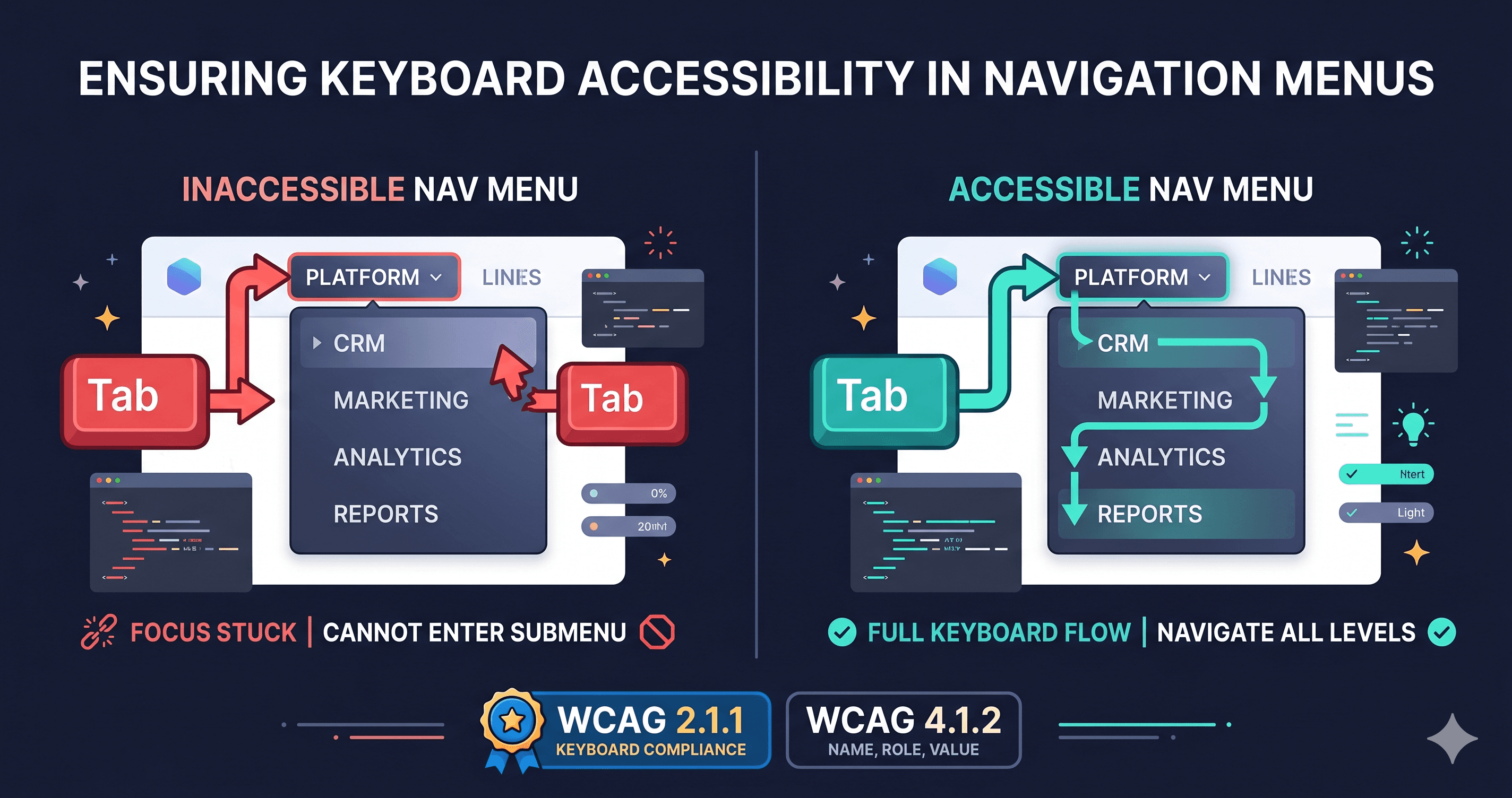
The most widespread failure: submenus that appear on mouse hover but have no keyboard equivalent. Tab moves past the parent item and the submenu never becomes reachable at all.
This violates WCAG 2.1.1 Keyboard — a Level A requirement, meaning it is a fundamental failure, not a best-practice gap.
A keyboard user navigating to your "Products" mega-menu using Tab will see nothing. The submenu is invisible to them. Every sub-category, every collection link, every featured product link — completely inaccessible.
2. Missing ARIA State on Toggle Buttons
When a menu item expands a submenu, assistive technology needs to announce that expansion. Without aria-expanded set correctly on the toggle, a screen reader user tabs to "Products" and hears only "Products, link" — no indication that pressing Enter will open a dropdown or what's inside it.
The correct pattern requires the toggle element to carry aria-expanded="false" (or "true" when open) and aria-controls pointing to the submenu container's ID.
3. Focus Not Returning to Parent on Close
When a keyboard user opens a submenu and presses Escape to close it, WCAG 2.4.3 Focus Order requires that focus returns to the element that opened the submenu. Many implementations instead drop focus to the page body or leave it trapped inside the now-hidden submenu.
This violates WCAG 2.4.3 Focus Order (AA) and — if the user cannot escape — WCAG 2.1.2 No Keyboard Trap (A), the most serious Level A barrier.
Why These Failures Attract Demand Letters
Law firms using automated scanners look for Level A violations specifically. Level A failures are the ones where no reasonable argument exists that the site made a "good faith effort." Hover-only menus and keyboard traps are unambiguous Level A failures that automated tools catch reliably.
In 2025, with over 4,800 ADA web accessibility lawsuits filed according to UsableNet — a significant year-over-year increase — navigation failures remain consistently in the top five cited issues. When an attorney's automated scan runs against your site, your mega-menu is one of the first things tested.
The ARIA Pattern That Actually Works
The W3C's ARIA Authoring Practices Guide (APG) defines the "Disclosure Navigation Menu" pattern as the recommended implementation for multi-level menus. This pattern uses:
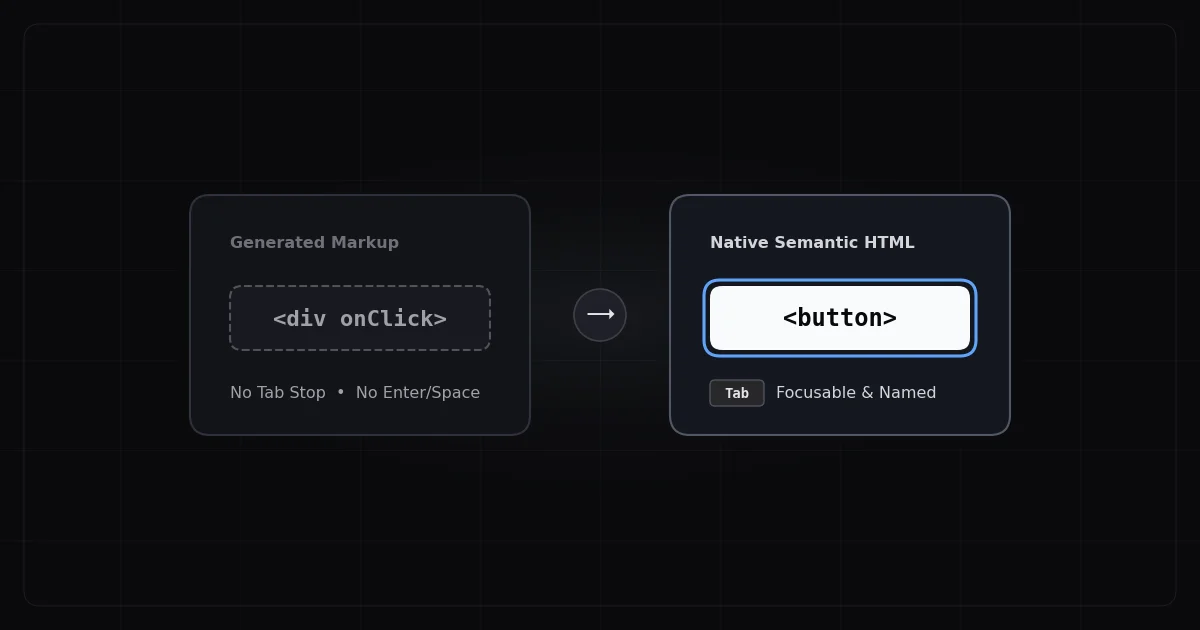
`` elements (not <a> or <div>) as the expand/collapse triggers
aria-expanded on the button to announce open/closed state
aria-controls pointing to the submenu container
id on the submenu <ul> matching the aria-controls value
A visible skip navigation link before the menu region
Here is an illustrative snippet showing the button trigger only — not a complete implementation, but enough to show what your developer or vendor needs to build:
When the button is activated, the JavaScript sets aria-expanded="true", removes hidden, and moves focus to the first item in the submenu. When Escape is pressed, the reverse happens and focus returns to the button.
What to Do When You Find Navigation Violations
Violations your platform settings may fix: Some Shopify themes and page builders expose a "mobile menu" or "accessible navigation" toggle in theme settings. If available, enable it — it typically adds the correct ARIA structure. Check your theme documentation first.
Violations that require a developer or vendor ticket: If your theme uses hover-only submenus or a custom JavaScript navigation implementation, you will need a code-level fix. When escalating to a developer or your theme provider's support team, include these WCAG criterion numbers:
WCAG 2.1.1 (keyboard access to all submenu items)
WCAG 4.1.2 (name, role, value — aria-expanded required)
WCAG 2.4.3 (focus order and return-to-parent on close)
Developers respond significantly faster with specific criterion numbers than with "make the menu accessible."
How ADAGuard Compares to Other Scanners for Navigation Issues
Most free accessibility tools test a static snapshot of your HTML. They can confirm that a element exists and that it has an aria-label. They cannot test whether the keyboard interactions work, whether aria-expanded toggles correctly, or whether focus management on close returns to the right element.
Scanner
Renders JavaScript?
Tests Keyboard Navigation?
Detects Hover-Only Submenus?
WAVE
No
No
No
Lighthouse
Partial
No
No
axe-core alone
No
No
No
ADAGuard
Yes
Yes
Yes
This gap is significant. Navigation failures — especially hover-only submenus — are primarily a JavaScript behavior problem, not an HTML structure problem. A scanner that reads your HTML source without running your scripts will see a perfectly reasonable structure and report no violations. The actual keyboard trap is in the event handlers, which only exist after JavaScript executes.
ADAGuard renders the full live DOM, including all JavaScript execution, and tests ARIA attribute states as they exist in the rendered page. This is why it catches ~78% of WCAG 2.2 AA criteria (43 of 55), more than single-engine tools that cover only a subset.
Scanning for Navigation Failures
Navigation failures — especially hover-only submenus and missing ARIA state — are only detectable on the live rendered DOM. A static HTML scanner will see your element and call it fine. It will not simulate keyboard navigation, test Escape key behavior, or check whether aria-expanded toggles correctly.
ADAGuard renders your full site with JavaScript running, then runs 22 custom check categories including ARIA attribute validation, focus management, and keyboard accessibility testing. Paste your URL at adaguard.io — no signup required — and the report will show you exactly which navigation elements are failing and which WCAG criterion they violate.
Your developers need a specific target. An ADAGuard report gives them one.
Verifying Your Fix After Implementation
Once a developer has updated your navigation to use the correct ARIA pattern, run a new scan to verify the fix. The most important things to confirm:
aria-expanded="false" is present on all closed toggle buttons
aria-expanded="true" appears when the menu is opened
No Level A violations remain on any navigation element
The skip link href="#main-content" (or equivalent) is present and targets the correct element
Focus moves correctly through menus with Tab and Arrow keys
ADAGuard's re-scan will confirm these attributes in the live rendered state — not just in the HTML source, but as they exist after JavaScript has set the actual values. If your developer implemented the fix but forgot to initialize aria-expanded in the default closed state, the scan will catch it.
The 30-Second Fix
Tab through your own site right now, without touching your mouse. Can you reach every item in your navigation? Can you open and close each submenu? Can you escape back to the parent when you're done? If the answer to any of those is no, that is a Level A WCAG failure sitting on your site today.
Scan it at adaguard.io and hand the report to your developer. The fix is usually a matter of hours for a developer who knows what they're targeting.
Verifying Your Fix After Implementation
Once a developer has updated your navigation to use the correct ARIA pattern, run a new scan to verify the fix. The most important things to confirm after implementation:
aria-expanded="false" is present on all closed toggle buttons in the rendered DOM (not just in source HTML)
aria-expanded="true" appears dynamically when the menu is opened
No Level A violations remain on any navigation element
The skip link href="#main-content" is present and targets the correct element
Focus returns to the parent toggle button after pressing Escape to close a submenu
ADAGuard re-scans confirm these attributes in the live rendered state — not just in the HTML source, but as they exist after JavaScript has run and set actual attribute values. If your developer implemented the fix correctly in code but forgot to initialize aria-expanded in the default closed state, a static scanner would pass it but ADAGuard would catch the live discrepancy.
Keyboard navigation failures are also worth verifying manually in addition to the automated scan: open the page, put down the mouse, and try Tab, Enter, Arrow keys, and Escape through every level of your navigation. Automated tools catch structural violations; a 30-second manual keyboard test catches interaction sequencing issues that no scanner reaches.</ul></div></a>