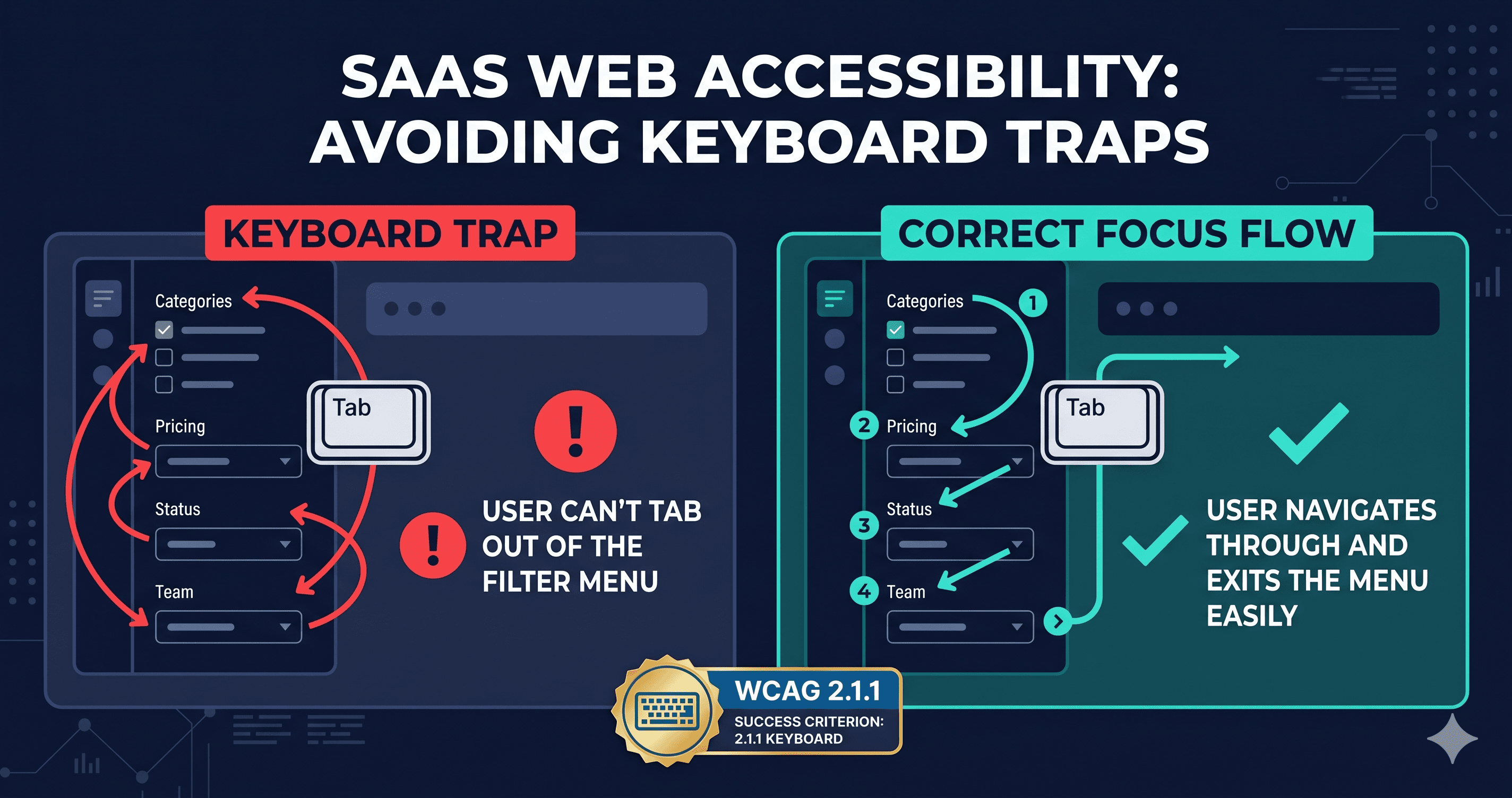
Keyboard traps in product filter sidebars are among the top e-commerce ADA violations. Here's how to identify which WCAG criteria apply and what to do about them.
Close your mouse. Tab through your product catalog page. Now try to actually use the filter sidebar.
If you lost focus, couldn't open a dropdown, or got trapped inside a multi-select checkbox group — your site just failed WCAG 2.1.1 (Keyboard, Level A). That's not a minor technicality. Level A failures are the floor of accessibility compliance, and keyboard navigation failures in filter sidebars are among the most cited issues in ADA demand letters targeting e-commerce sites. In 2025, over 4,800 ADA website lawsuits were filed in U.S. federal courts (UsableNet), with e-commerce accounting for nearly 70% of all cases. Filter and navigation components are consistently flagged in the specific violation lists attached to those complaints.
Why Filter Sidebars Fail Keyboard Users
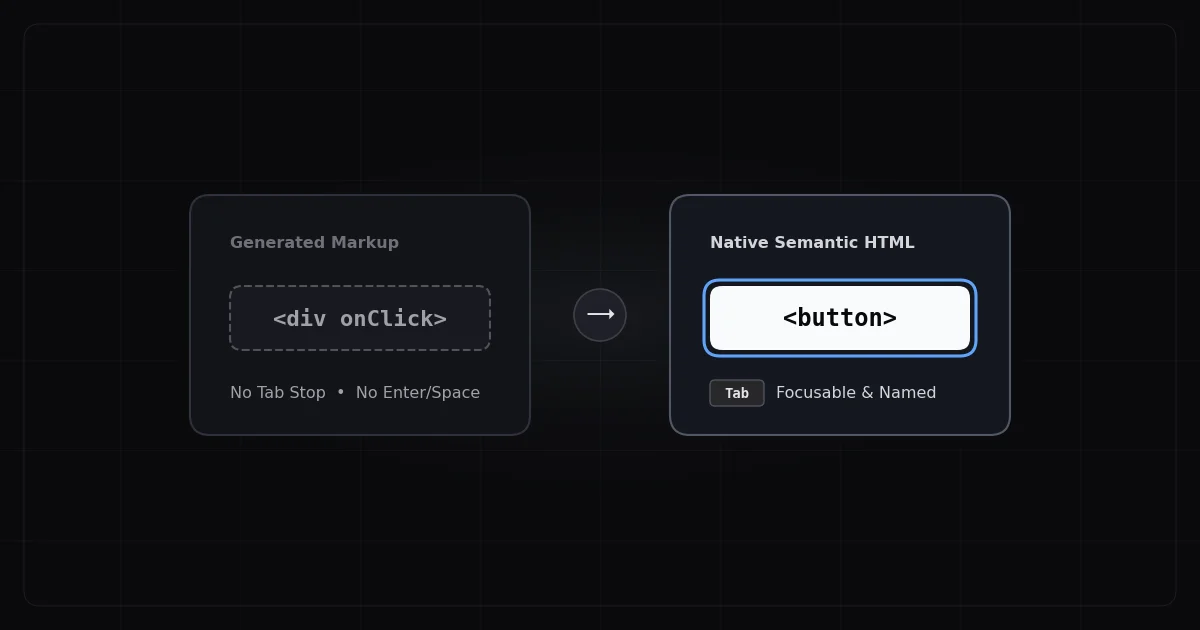
Standard HTML inputs — , , `` — are natively keyboard accessible. The problem is that most modern e-commerce filter sidebars aren't built with standard HTML. They're built with custom JavaScript components: styled <div> and <span> elements that look like checkboxes and dropdowns but don't behave like them for keyboard users.
Custom components require developers to manually implement keyboard interaction patterns. When that implementation is missing or incomplete, the result is a filter sidebar that only works with a mouse.
A filter using a styled <div> to represent a dropdown must implement keyboard event handlers. At minimum: Enter or Space opens the dropdown, Arrow Down/Up moves between options, Escape closes it and returns focus to the trigger. Without these, keyboard users see a visual dropdown they cannot operate.
2. Accordion filter panels that trap focus
Filter sidebars often use accordion patterns — a "Price Range" header that expands to reveal a slider or inputs. When these panels collapse, focus must return to the trigger (the header button). If focus jumps to the page top or disappears entirely, that's a keyboard trap violation under WCAG 2.1.2.
3. Invisible focus indicators on checkboxes
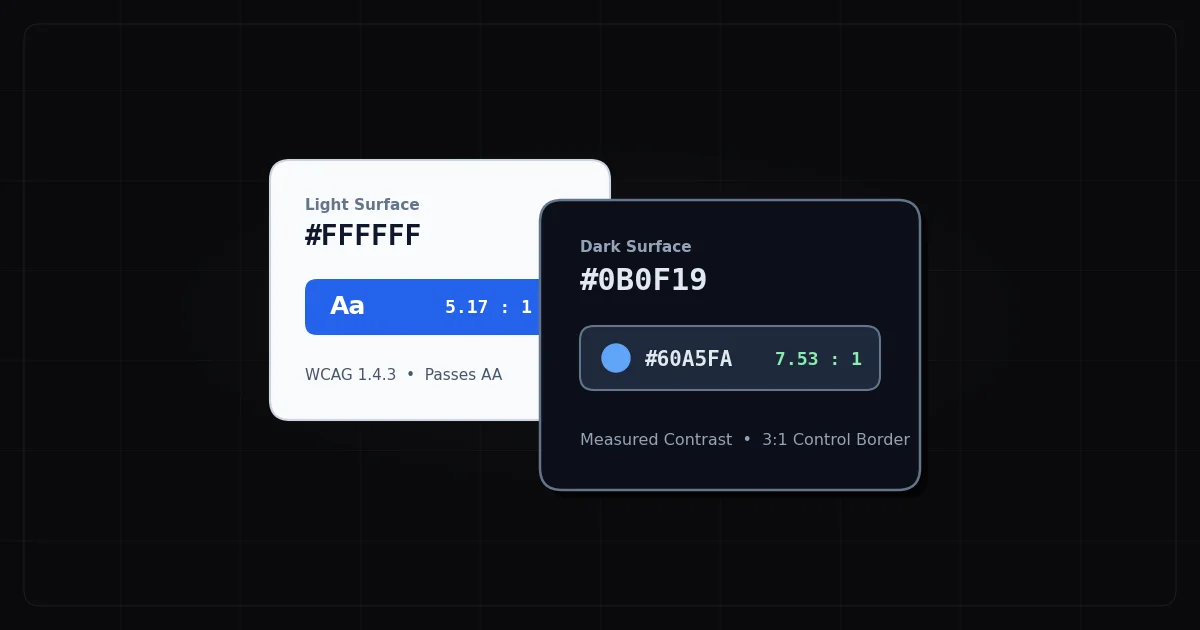
Custom filter checkboxes frequently use outline: none in CSS for visual polish. For keyboard users, this makes it impossible to see which filter is currently selected. WCAG 2.4.7 requires a visible focus indicator; WCAG 2.4.11 (2.2) tightens this further with minimum contrast requirements for the focus ring.
4. "Apply Filters" buttons with no keyboard access
Some filter sidebars trigger filtering on checkbox change via JavaScript. Others have an explicit "Apply" button. If that button isn't reachable by Tab or actionable by Enter, the entire filter workflow is broken for keyboard users.
What to Do When You Find Violations
When your WCAG checker flags keyboard navigation failures in a filter sidebar, violations fall into two categories:
What requires code changes in your own codebase:
If you've built a custom filter component, a developer needs to add keyboard event handlers to the custom elements. The specific WCAG criterion numbers to hand your developer:
2.1.1 — add keyboard handler to dropdown open/close
2.4.7 — restore visible outline on focus states (remove outline: none)
4.1.2 — add role="checkbox" and aria-checked state to custom checkbox elements
What requires a ticket to your platform or theme vendor:
If the filter sidebar is part of a Shopify theme, WooCommerce plugin, or BigCommerce faceted search feature, the fix lives inside the vendor's component code. Open a support ticket referencing the specific WCAG criterion numbers and the component name. Enterprise platform vendors have accessibility teams — citing the exact criterion gets you to the right person faster.
The critical first step is knowing which specific violations exist on YOUR filter sidebar — not every site has the same failures. A site using Shopify's native collection filters has different failure patterns than one using a custom React faceted search component.
A Note on ARIA Roles for Custom Filter Controls
If you're building or reviewing a custom filter implementation, these ARIA roles and properties are the correct pattern for common filter component types:
This is an illustrative snippet — not a complete implementation. A working keyboard component also needs JavaScript to handle Space toggling aria-checked, Enter activating selection, and Tab moving between items. Hand the criterion numbers to your developer and let the scan report tell you which elements are missing these attributes.
Testing Keyboard Navigation on Your Filter Sidebar
A quick manual test before you scan:
Load your product catalog page
Press Tab until you reach the filter sidebar
Try to open a filter dropdown using only Enter or Space
Select a filter option using Arrow keys
Press Escape to close the dropdown — confirm focus returns to the trigger
Press Tab to continue through remaining filters
Attempt to trigger the filter apply action via keyboard
If any step breaks — or if you lose visual focus at any point — you have a WCAG 2.1.1 or 2.4.7 violation. Note the specific component and behavior for your developer or vendor ticket.
Automated scanners catch the structural failures (missing role, missing tabindex, outline: none in CSS). Manual testing catches behavioral failures (Enter key not working, focus not returning after Escape). You need both.
The 30-Second Fix
Most e-commerce teams don't know which specific filter components on their site are failing keyboard access — because finding it requires tabbing through every filter state, not just loading the page.
ADAGuard renders JavaScript and scans the fully interactive DOM, flagging keyboard accessibility failures across your actual filter sidebar components. Paste your catalog page URL at adaguard.io — no signup needed — and get the specific WCAG criterion violations with affected elements listed. Hand that report to your developer or platform support team and you're done with step one.</div></span></div>