Shogun Page Builder: Fixing Accessibility in Drag-and-Drop
Shogun's drag-and-drop editor makes beautiful Shopify pages — but it silently ships WCAG violations that attract ADA demand letters. Here's exactly what breaks and how to fix it.
Your Shogun page looks great. The hero converts. The product grid pops. Your designer is happy, your client is happy — and somewhere, an accessibility plaintiff's attorney is running an automated scan that just flagged 14 violations on that same page.
Drag-and-drop page builders like Shogun are the fastest way to build high-converting Shopify storefronts, but they generate HTML in ways developers don't fully control — and the output regularly fails WCAG 2.1 AA, the standard courts now use to evaluate ADA compliance. More than 2,000 ADA website accessibility lawsuits were filed in the first half of 2025 alone, a significant increase over the same period in 2024, according to UsableNet's 2025 mid-year report — and nearly 70% of those targeted e-commerce retailers.
Shogun isn't the villain here. It actually provides more accessibility scaffolding than most competing builders. But understanding what it handles automatically, what it leaves to you, and what it gets wrong is the difference between a compliant storefront and a demand letter in your inbox.
What Shogun Gets Right (and Where It Falls Short)
Shogun's official documentation confirms that many elements are built with accessibility in mind. The Heading element lets you choose h1 through h6 — critical for screen reader navigation. The Image element includes an alt text field. The Accordion uses h4 tags by default for semantic structure. And the form elements are generally keyboard-navigable.
That's the good news. Here's the catch.
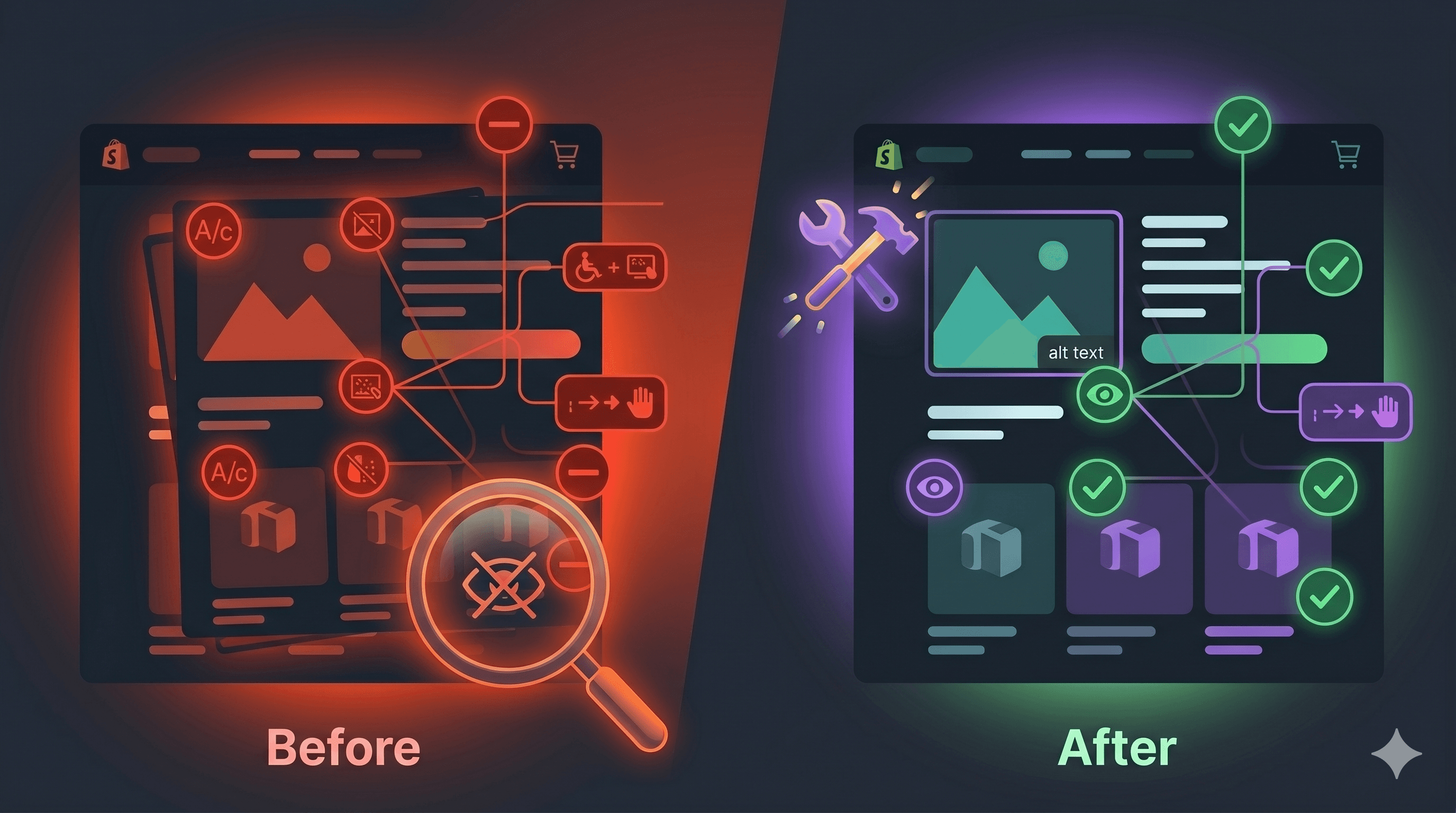
Shogun's accessibility features are opt-in. If a merchant or designer doesn't consciously fill in the alt text field, it renders as an empty alt="" — which tells screen readers the image is purely decorative, even if it shows a product with price information. If the heading hierarchy gets skipped (jumping from h2 to h4 because it "looks right"), screen reader users navigating by heading will hit dead ends. And background images — used constantly in hero sections, banner overlays, and promotional tiles — cannot receive alt text at all, because Shogun renders them as CSS rather than HTML <img> elements.
Shogun's documentation also explicitly notes that ARIA labels are planned for future improvements — which means many interactive custom elements currently ship without the programmatic labels assistive technology depends on.
The 6 Most Common WCAG Failures in Shogun-Built Pages
The violations below appear consistently across Shogun storefronts audited through ADAGuard's live DOM scanner, which renders pages with JavaScript before evaluating them — the same way a real browser (and a real screen reader) would.
Element
Common Failure
WCAG Criterion
Fix Effort
Product image tiles
Missing or empty alt text
1.1.1 Non-text Content
Low — add alt text per image
Hero section background
Decorative text in CSS background
1.1.1 Non-text Content
Medium — rebuild as <img> or add visually-hidden text
Heading hierarchy
Skipped levels (h2 → h4)
1.3.1 Info and Relationships
Low — reconfigure heading type in Shogun editor
Custom button elements
Missing ARIA label on icon-only buttons
4.1.2 Name, Role, Value
Medium — add aria-label via custom code
Drag-to-sort interactions
No single-pointer alternative provided
2.5.7 Dragging Movements (WCAG 2.2)
High — requires keyboard-accessible equivalent
Color overlays on images
Text fails 4.5:1 contrast ratio
1.4.3 Contrast (Minimum)
Low–Medium — adjust overlay opacity or text color
The Dragging Problem: WCAG 2.5.7 and What It Means
WCAG 2.2 introduced Success Criterion 2.5.7: Dragging Movements, which requires that any functionality achievable through dragging must also be achievable through a single pointer without dragging. This affects both the Shogun editor itself (relevant for agency users building on behalf of clients) and any drag-to-reorder or swipe-based components embedded in the live storefront — product carousels, image sliders, sortable wishlists.
The key phrase is "single pointer without dragging." A tap, click, or press must accomplish the same result. Most Shopify product carousels built in Shogun don't provide next/previous buttons alongside swipe functionality, meaning keyboard users and users with motor disabilities who can click but can't drag are simply locked out.
This is a Level AA requirement, which means it's the compliance bar the ADA aligns with. Failing it is legally actionable.
How Shogun Generates Heading Problems
Shopify themes have their own heading hierarchy. When Shogun is layered on top, designers often choose heading sizes based on visual weight rather than semantic order. A designer might choose "H4 style" because it looks right at 18px, without realizing that Shogun is actually outputting an <h4> tag into a page whose existing structure already has an </h4><h2> — skipping </h2><h3> entirely.
Screen readers like JAWS and NVDA allow users to navigate pages by heading, pressing H to jump to the next heading. When levels are skipped, this navigation breaks. According to WebAIM's 2026 Million Crawl, heading-related accessibility failures appear on a significant portion of pages tested, and are among the most common issues flagged by automated scanners.
The fix is straightforward but requires discipline: open every page in Shogun, select each text element, and verify the heading type matches its semantic role in the document — not its visual size.
The Invisible Risk: Background Images
Here's the violation that surprises most Shogun merchants. A typical Shogun hero section looks like this in the output HTML:
[ HTML ]
<div class="shg-hero" style="background-image: url('hero-banner.jpg');">
  <h1>Summer Sale — 40% Off Sitewide</h1>
</div>
The background image is invisible to screen readers. That's usually fine for pure decorative images. But merchants frequently embed product photography, promotional banners with text, or brand imagery that carries meaningful context — and none of it is exposed to assistive technology.
The WCAG fix depends on the content. If the image is truly decorative (a texture, gradient, or abstract pattern), an empty CSS background is fine. If it carries information, the image needs to move to an <img> tag with descriptive alt text, or a visually-hidden <span> with equivalent text needs to be added inside the container.
Running a Real Audit on Your Shogun Pages
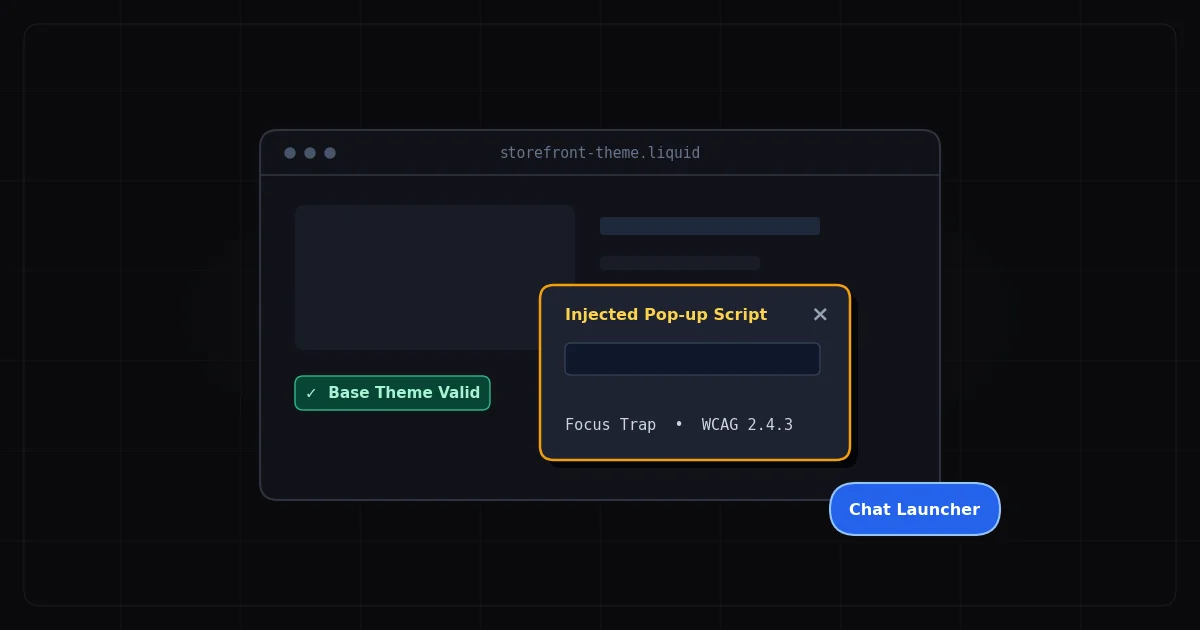
Because Shogun renders content dynamically — custom elements, JavaScript-injected sections, personalization layers — static HTML scanners will miss a substantial portion of violations. Tools that download page source without executing JavaScript won't see what Shogun actually outputs in the browser.
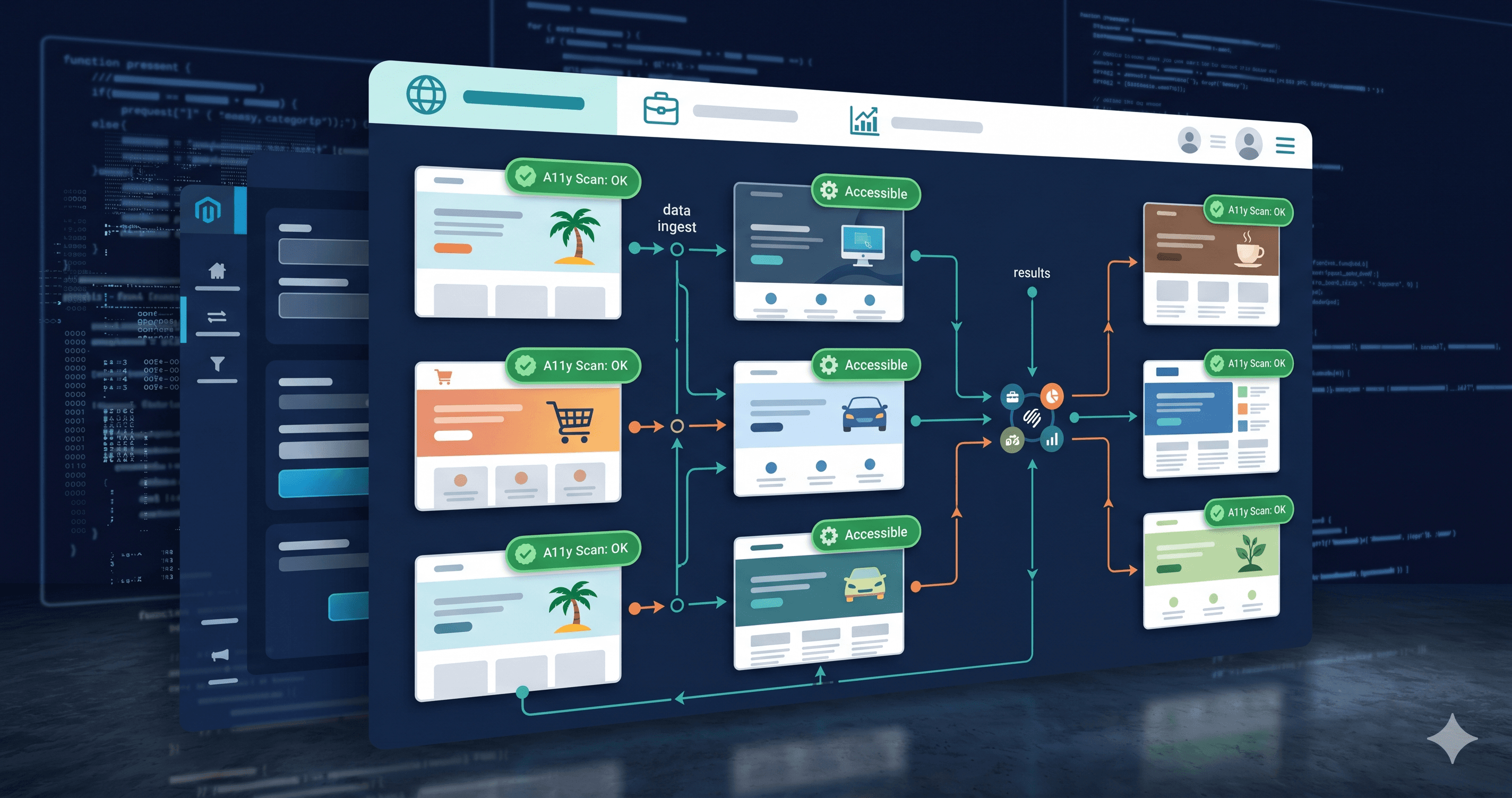
ADAGuard uses a live Playwright-based engine that renders full JavaScript before scanning. This means it catches violations in Shogun's generated output that browser-source-based tools miss entirely. You get the same view an NVDA or JAWS user would get, not the server-rendered shell.
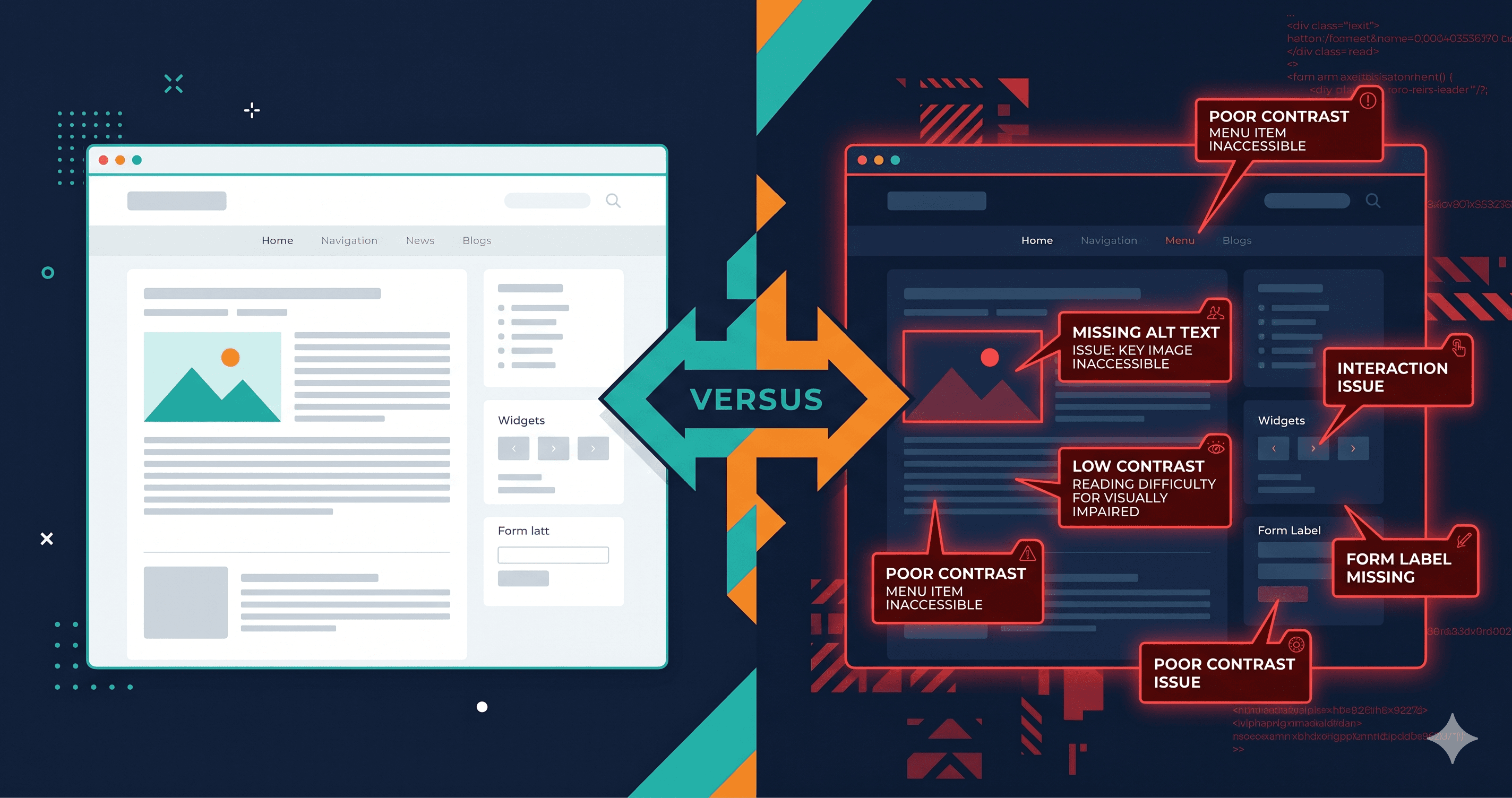
A typical Shogun storefront scan through ADAGuard returns violations across heading structure, color contrast, missing alt text, and empty interactive element labels — the exact categories most likely to appear in an ADA demand letter.
The Shogun Accessibility Fix Checklist
Work through this after every significant page build or redesign:
Images and media:
Every <img> element has meaningful alt text (not just the product name — describe what the image shows)
Background images used for informational content are rebuilt as <img> tags
Decorative images use alt=""
Headings:
Document starts at h1 (product name or page title)
Levels run sequentially without skipping (h1 → h2 → h3, never h2 → h4)
Use Shogun's heading type selector, not just the visual size
Interactive elements:
All buttons have visible labels or aria-labels
Icon-only buttons have descriptive aria-labels ("Add to cart", not "button")
All interactive elements reachable and operable via keyboard Tab and Enter
Auto-play disabled by default or pauseable by keyboard
Color:
Normal text (< 18pt) meets 4.5:1 contrast ratio
Large text (≥ 18pt or 14pt bold) meets 3:1 contrast ratio
Text over image overlays checked against the actual overlay color, not the underlying image
The 30-Second Fix
Before your next Shogun page goes live, run it through ADAGuard's free scanner — no signup required. Paste the URL at adaguard.io and get a full live-DOM accessibility report in under 30 seconds. ADAGuard runs 23 check categories against your rendered page, catching heading structure failures, color contrast issues, missing ARIA labels, and empty alt text that static tools miss entirely. If you're managing multiple Shopify stores for agency clients, ADAGuard's monitoring plans let you scan all of them on a schedule — so a new Shogun section doesn't introduce a violation that sits unfixed for months.
The drag-and-drop build process is fast. The compliance audit should be too.</span></h3>