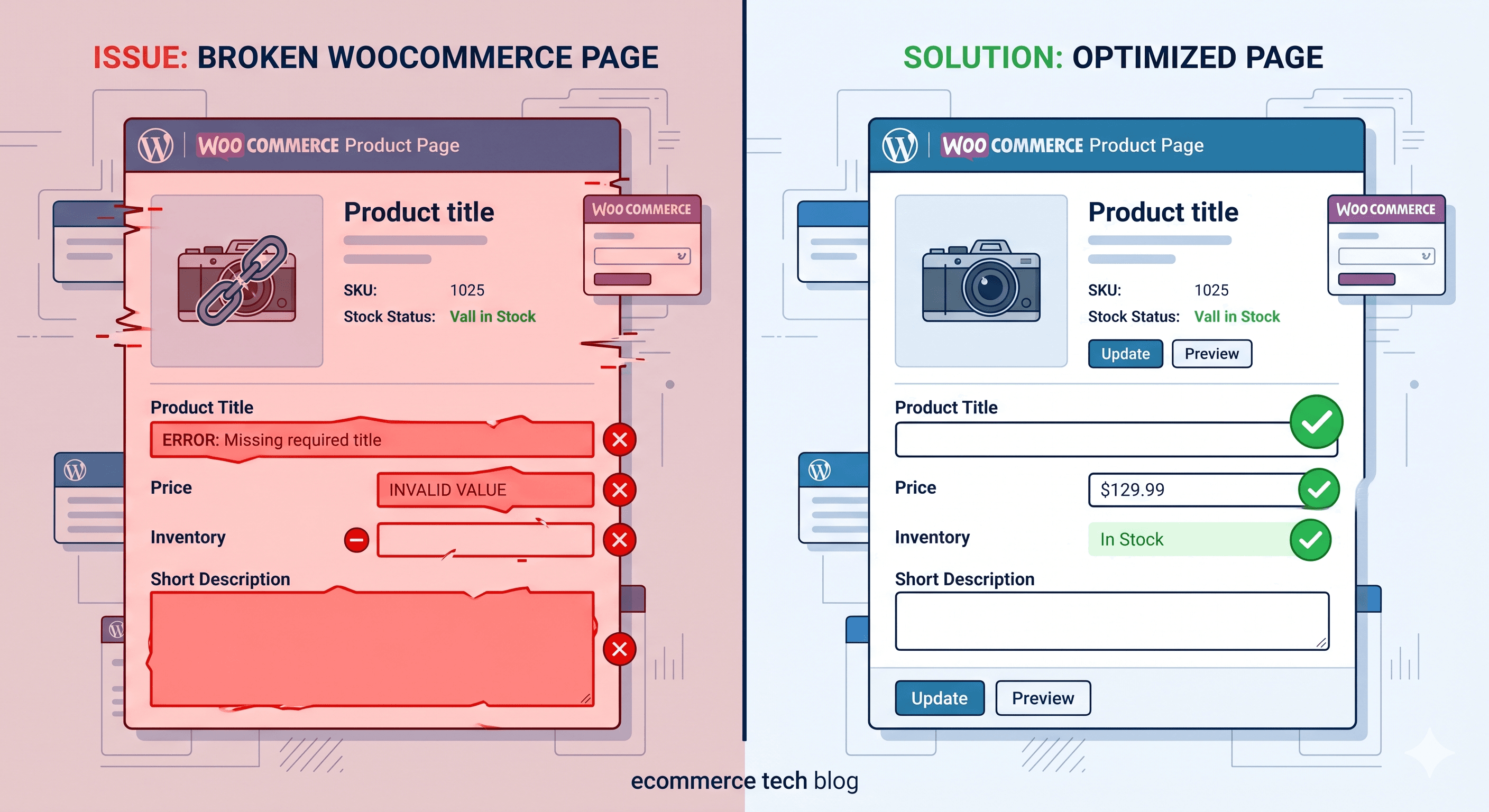
WooCommerce powers 43% of all online stores — and the vast majority of them are failing basic WCAG 2.1 AA requirements right now. Not because the developers are careless, but because WooCommerce's default markup, combined with the WordPress plugin ecosystem, creates a perfect storm of accessibility failures that only become visible when you scan the rendered DOM.
If you're a developer maintaining a WooCommerce store, this is the checklist you need before a plaintiff's attorney gets there first.
Why WooCommerce Specifically Struggles
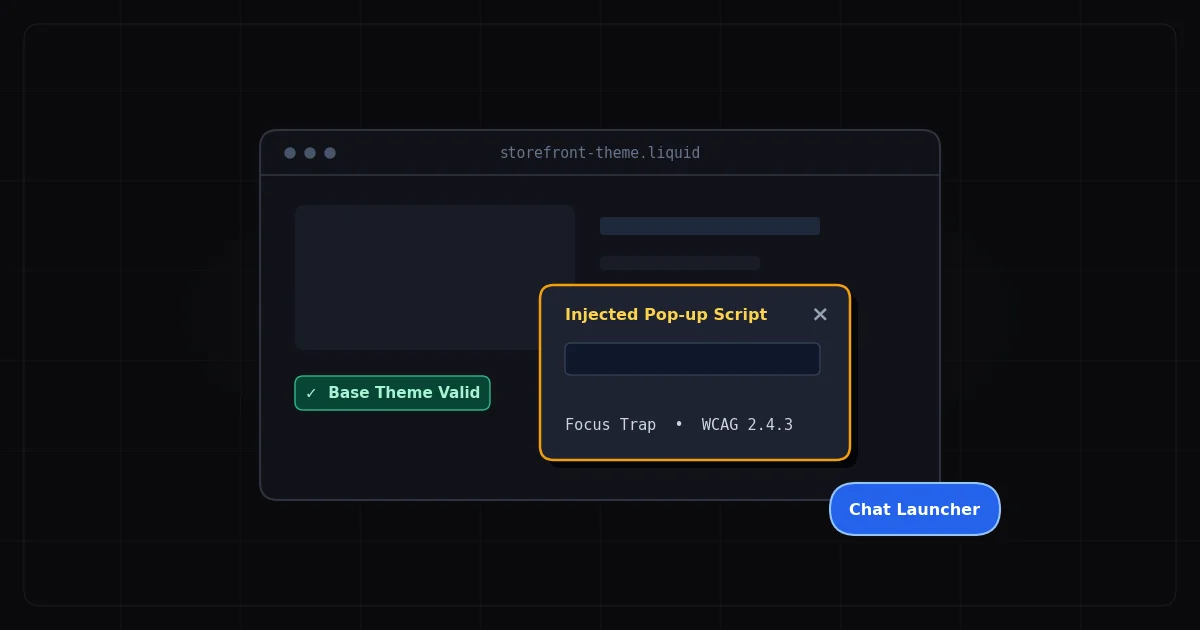
WordPress's plugin architecture means your accessibility surface area is enormous and constantly shifting. Every plugin adds HTML, CSS, and JavaScript to the DOM — often with zero accessibility consideration. WooCommerce itself has improved its core markup substantially, but the moment you layer on a page builder, a product filter plugin, or a checkout extension, you're back to square one. That shifting surface is the reason a WordPress accessibility checker has to scan the rendered DOM: an editor-level plugin never sees what those layers actually output.
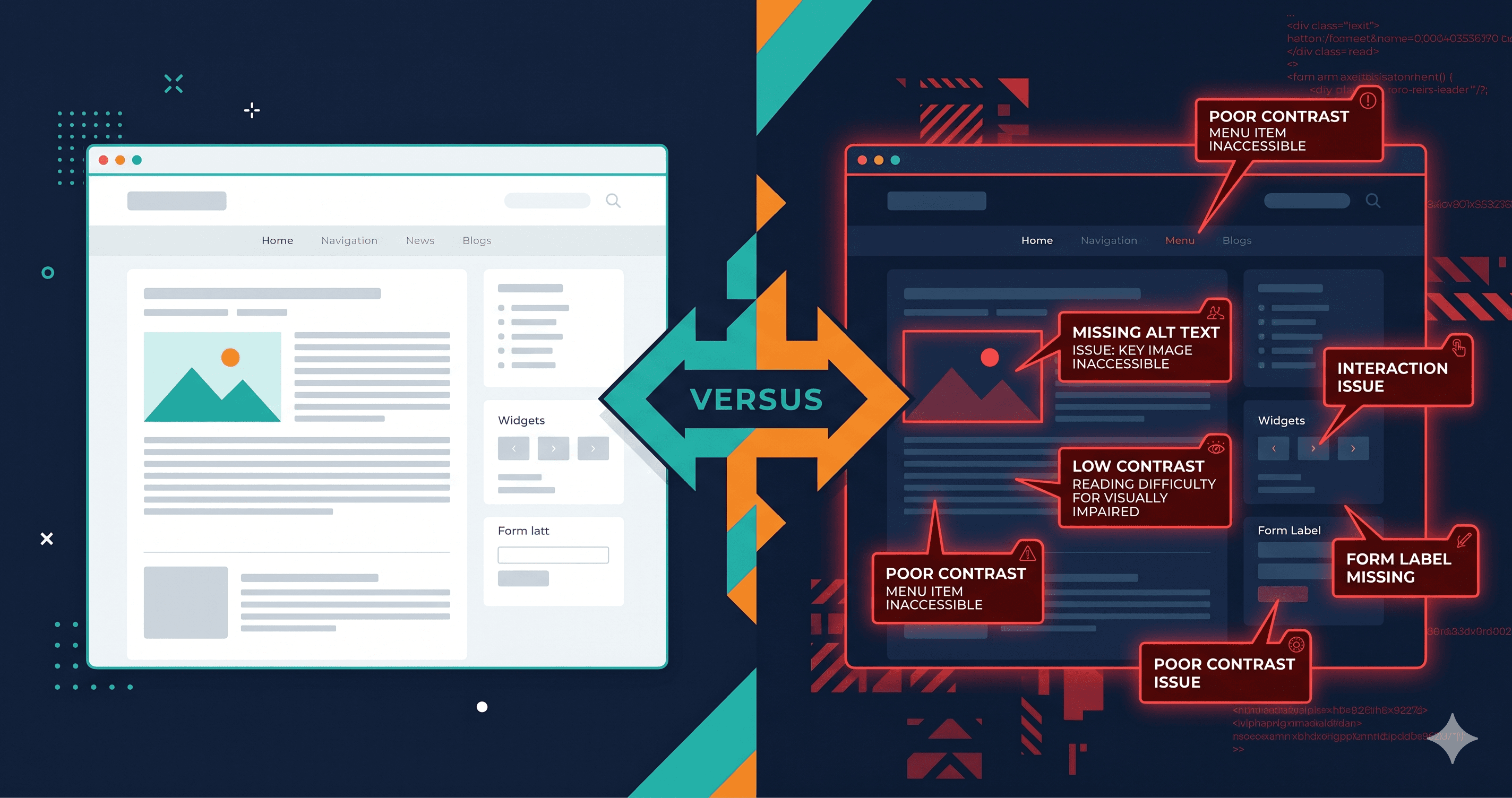
The violations that appear most consistently across WooCommerce audits cluster around six areas: product page image labelling, cart interactions, checkout form structure, AJAX-loaded content, error handling, and third-party widget injection.
The Six Violation Clusters
1. Product Gallery — Missing and Malformed Alt Text
WooCommerce's product gallery uses a thumbnail carousel that frequently generates empty or useless alt text. The default template pulls alt text from WordPress's media library attachment — but if merchants upload images without filling in the alt text field (which most don't), the rendered HTML has alt="" on every product image. Screen reader users land on a product page and hear nothing useful as they move through the gallery.
The violation is WCAG 1.1.1 (Non-text Content), and it appears in virtually every WooCommerce audit. Whether it exists on your store — and how many images are affected — is something only a live scan can confirm, because the count varies entirely with your product catalog's alt text hygiene.
On shop archive pages, WooCommerce renders multiple "Add to cart" buttons — one per product — with identical accessible names. A screen reader user navigating by button hears "Add to cart, Add to cart, Add to cart" with no way to know which product each button refers to. This is a WCAG 4.1.2 (Name, Role, Value) failure, and it's one of the most consistently cited violations in ecommerce demand letters.
The fix requires each button's accessible name to include the product name. Your scan report will confirm whether this affects your specific theme's archive page markup.
WooCommerce's checkout is one of the more accessible parts of the platform — but customisation breaks it. Page builders that override the checkout template routinely produce input fields without proper `` associations, and inline validation errors that appear visually but are never announced to screen readers via role="alert" or aria-live regions.
A user who submits an invalid checkout form and hears nothing has no way to know what went wrong. These failures affect WCAG 1.3.1, 3.3.1, and 4.1.2. Your scan will show exactly which checkout fields are affected and which error states are unannounced.
4. AJAX Cart Updates — No Screen Reader Feedback
WooCommerce's mini-cart updates via AJAX when items are added. Sighted users see a visual count change. Screen reader users get silence — there's no aria-live region to announce the update programmatically. This violates WCAG 4.1.3 (Status Messages), which requires that status updates be announced without requiring keyboard focus.
A scanner running against your live DOM will detect missing live regions in your cart fragment output.
5. Color Contrast on Sale Badges and CTAs
WooCommerce's default "Sale!" badge frequently renders white text on light green — a common contrast failure. WCAG 1.4.3 requires a 4.5:1 contrast ratio for normal text. Most default WooCommerce badge color schemes hit 2:1 to 3:1 on these elements.
ADAGuard's color contrast module calculates contrast ratios automatically across every text element on the page — including dynamically rendered sale badges that only appear when products are on sale.
6. Product Filter Plugins — The Invisible Violation Factory
AJAX product filtering plugins (FacetWP, WooCommerce Product Filters, YITH WOOF, etc.) are among the worst accessibility offenders in the ecosystem. Filtered results update without any announcement to screen reader users, checkbox filters have no labels, and the "no results" state is invisible to assistive technology.
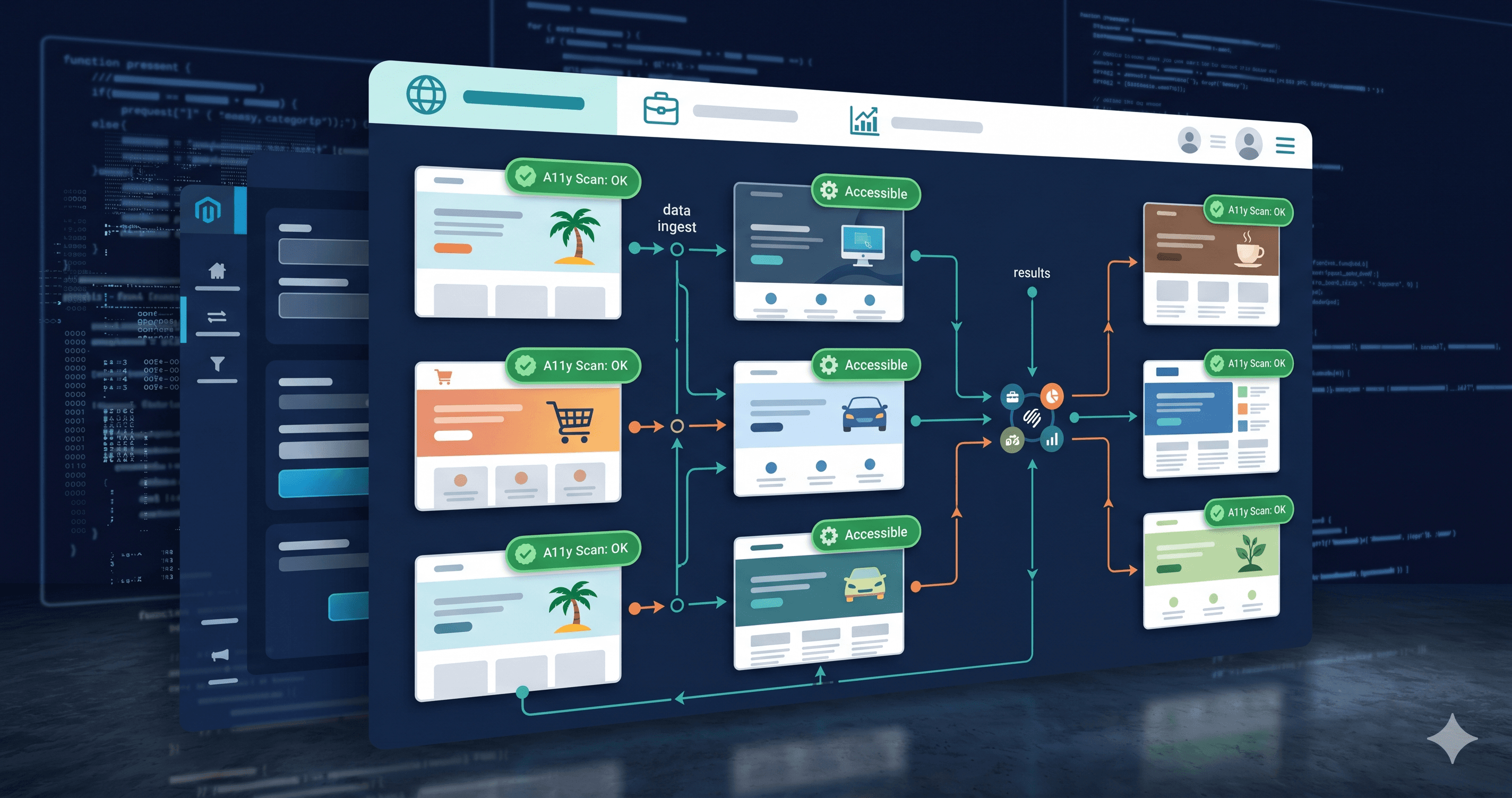
This is where DOM-level scanning matters enormously. A static HTML scan of your WooCommerce store won't load the filter plugin's JavaScript or render its AJAX responses — so it won't detect these violations. ADAGuard renders pages in a full Chromium browser, executes all JavaScript, and scans 50+ check categories on the final rendered state.
Running Your WooCommerce Accessibility Audit
Here's the workflow I recommend for WooCommerce developers:
| Page | Priority Checks |
|---|
| Shop Archive | Add to cart labels, product image alt text, filter widget accessibility |
| Single Product | Gallery alt text, variation selector labels, tab panel markup |
| Cart | Quantity input labels, remove button accessible names, coupon field label |
| Checkout | All form field labels, error associations, required field indicators |
| My Account | Login form labels, order table headers, address form structure |
| Account-gated pages | Authenticated scan required — standard scanners can't reach these |
That last row matters more than most developers realise. If your store has a logged-in checkout flow, member pricing pages, or a customer account portal, a standard accessibility scanner can't even reach them. ADAGuard's authenticated scanning logs in with real credentials and tests password-protected pages — the same way a real user (and a plaintiff's attorney) would.
What "~78% Coverage" Actually Means
Automated tools can't catch everything — some violations require human judgment (does this image convey meaningful information, or is it decorative?). But automated tools can reliably catch the majority of technical violations before a human reviewer ever touches the site.
Tools that run only a single rule engine catch a limited subset of WCAG 2.1 AA criteria automatically. ADAGuard's 23-category scanning engine — 22 custom modules covering images, color contrast, forms, headings, links, ARIA, keyboard access, multimedia, HTML structure, and more, plus axe-core integration — reaches approximately 78% automated coverage (43 of 55 criteria). That's the difference between catching the obvious issues and catching the ones that end up in demand letters.
The 30-Second Fix
Before you spend hours auditing your WooCommerce store manually, let a scanner do the heavy lifting. Paste your store URL at adaguard.io — no account required — and you'll have a full violation report in under a minute. The scan renders your JavaScript, loads your plugins, and checks against all 50+ automated rules.
Start with your shop page, your cart, and your checkout. Those three pages account for the majority of WooCommerce ADA lawsuits. Fix what the scan finds, and you've eliminated most of your legal exposure before writing a single line of code.