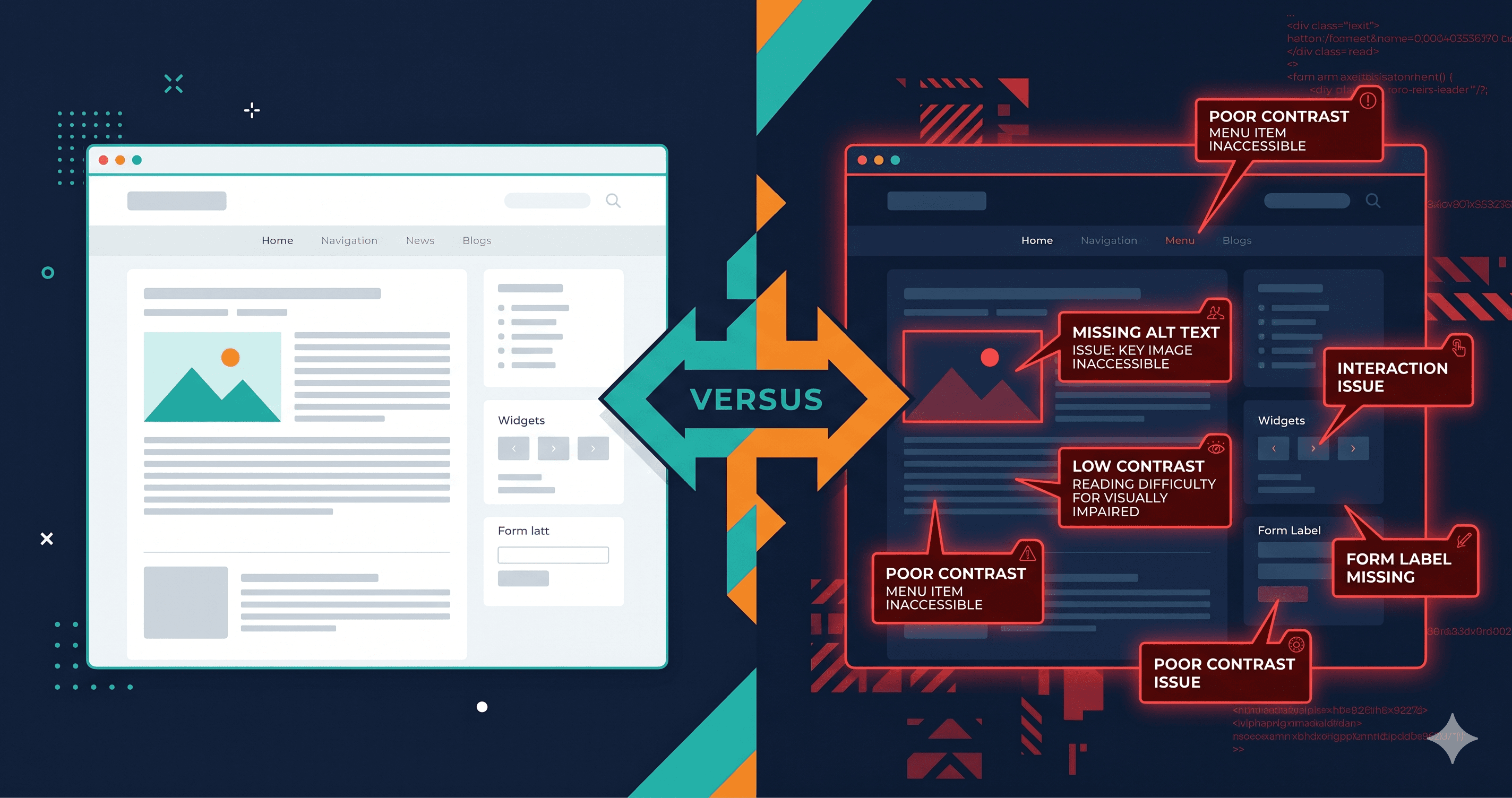
Webflow's promise — professional websites without writing code — has been transformative for designers and agencies. But there's a problem baked into the visual-first workflow: it's extremely easy to build a beautiful site that a screen reader user cannot use at all. Approximately 7.6 million Americans have a visual disability (US Census Bureau), and they rely on assistive technology to navigate the web. When your Webflow site fails screen reader compatibility, you're not just creating a bad experience. Depending on your industry, you may be violating the ADA.
Here's what Webflow-specific screen reader failures look like, why they happen, and how to fix them systematically.
Why Webflow Creates Screen Reader Problems
Webflow is a visual builder, which means the default experience is optimised for sighted users with a mouse or trackpad. When you drag a component onto the canvas, Webflow generates HTML — but the semantic correctness of that HTML depends on design decisions the designer may never think about: which heading level to use, whether a div should be a button, whether a decorative image needs alt text.
Webflow has added accessibility features over time — alt text fields, ARIA attribute panels, custom code embeds — but these are opt-in. The default path of least resistance creates accessibility violations.
The five most common screen reader failures in Webflow:
1. Heading Hierarchy — The Navigation Skeleton Screen Readers Need
Screen reader users navigate pages primarily through headings. Hitting H on a keyboard jumps to the next heading; hitting 1–6 jumps to headings of specific levels. A well-structured page has one H1 (the page title), H2 for major sections, H3 for subsections, and so on.
Webflow designers routinely pick heading levels based on visual size rather than semantic meaning. The hero section H1 uses a Display Text style that visually looks right, but someone else chose H3 for the pricing section headers because "they looked better at that size" — creating a heading structure that skips levels and confuses screen reader navigation entirely.
The fix is always semantic, never visual — pick the correct heading level for the document structure, then adjust the visual size with CSS. In Webflow's designer, check every Heading element's level in the element settings panel. There should be exactly one H1 per page, and levels should never skip (no H2 → H4 without an H3 in between). ADAGuard's heading structure checker identifies these violations automatically across your entire site.
2. Interactive Div Elements — The Biggest Webflow Accessibility Failure
This is the issue that causes the most real-world screen reader problems on Webflow sites. Webflow makes it easy to add click interactions to any element — including <div> elements. A div with an onclick interaction looks and behaves like a button to a mouse user, but to a screen reader it's invisible as an interactive element.
Screen reader users navigate interactive elements using the Tab key. Only natively interactive HTML elements — <a>, , , ``, etc. — are in the tab order by default. A div with a click event isn't focusable. The screen reader user skips over it entirely.
If you're using a Webflow div as a clickable card, accordion toggle, custom dropdown, or any interactive element, it needs to be accessible to keyboard and screen reader users — either by adding role="button" and tabindex="0" with a keyboard event handler, or better still, by replacing the div with Webflow's native Button or Link Block elements, which come with keyboard accessibility built in. Your scan report will flag every non-focusable element that has a click interaction — these show up consistently as WCAG 4.1.2 failures.
3. Webflow Interactions and Animations — The Hidden Barrier
Webflow's Interactions panel is one of its most powerful features and one of its biggest accessibility risks. Animations that trigger on scroll, hover states that reveal content, elements that animate in on page load — none of these are inherently inaccessible, but they become problems when:
- Content is hidden via
opacity: 0 but remains in the DOM — screen readers read it even though it's invisible
- Animated elements don't respect
prefers-reduced-motion — users with vestibular disorders who have system-level motion reduction enabled still get the full animation
- Tabbed content uses display toggling instead of ARIA — the hidden tabs are either unreachable or audible when they shouldn't be
The reduced motion issue is a CSS media query that should be present in every Webflow site — without it, users who have "reduce motion" enabled at the OS level still get full Webflow animations, violating WCAG 2.3.3. For content hidden via opacity: 0 (common in Webflow scroll animations), the element remains in the accessibility tree and is audible to screen readers even when visually invisible — visibility: hidden is the correct alternative. Both violations appear in ADAGuard's keyboard and animation checks.
4. CMS Collections — Dynamic Content That Breaks Patterns
Webflow CMS is powerful for content-heavy sites, but CMS Collection Lists generate HTML dynamically from your schema — and accessibility attributes don't transfer automatically.
Image alt text in CMS: Webflow CMS has an image field type that includes an alt text sub-field. If your content editors aren't filling it in (they often aren't), every CMS-driven image on your site renders with alt="". On a blog with 200 posts, that's 200 accessibility violations.
The fix is a CMS binding: in your Collection Template, bind the image element's alt text to the CMS image's alt field, with a fallback to the post title:
In Webflow Designer, select the CMS image element → Image Settings → Alt Text → bind to Image Alt (from CMS collection). If the field is empty, the fallback should pull from the post title field.
List semantics in Collection Lists: Webflow's Collection List element renders as <div class="w-dyn-items"> by default — not a <ul>. For content that's semantically a list (blog posts, team members, products), this means screen readers don't announce the number of items or allow list-navigation shortcuts.
You can't change the Collection List wrapper's element type in Webflow's visual editor, but Webflow's Custom Attributes panel lets you add role="list" to the wrapper and role="listitem" to each item without writing code. Your scan report will identify which CMS collections are missing these ARIA roles on your specific site.
Webflow's form builder is deceptively simple. Add a form, add fields, done. But the default output has several issues:
- Placeholder text used instead of labels — placeholders disappear when you type, leaving users with memory or cognitive disabilities unable to recall what the field is for. Placeholder text also fails contrast requirements in most browsers.
- No association between error messages and fields — when validation fails, the error message appears near the field visually but has no programmatic connection
- Required fields indicated only by asterisk — with no explanation of what the asterisk means
In Webflow, you can add most missing ARIA attributes through the custom attributes panel. For label association, Webflow generates `` elements when you use the Label element — the key step is connecting each label to its input via the for attribute matching the input's ID. Whether your forms have this correctly wired up is something your scan report will confirm, since it varies between manually-built forms and Webflow's auto-generated form components.
Running a Screen Reader Audit on Your Webflow Site
Before diving into tools, here's a quick reference for where the failures concentrate on Webflow sites and how to prioritise them:
| Webflow Element | Screen Reader Failure | WCAG Criterion | Fix Effort |
|---|
| Clickable Divs (Interactions) | Not focusable, invisible to assistive tech | 2.1.1, 4.1.2 | Low — add role="button" + tabindex="0" |
| CMS Collection Images | Empty alt text from unfilled CMS field | 1.1.1 | Low — bind alt to CMS field |
| Headings | Levels chosen by visual size, not semantics | 1.3.1, 2.4.6 | Medium — audit each heading element |
| Scroll Animations | Ignore prefers-reduced-motion | 2.3.3 (AAA) | Low — one CSS rule |
| Form Fields | Placeholder used instead of label | 1.3.1, 3.3.2 | Low — add Label element + for binding |
| Opacity-hidden content | Read by screen readers when visually hidden | 1.3.1 | Low — use visibility: hidden |
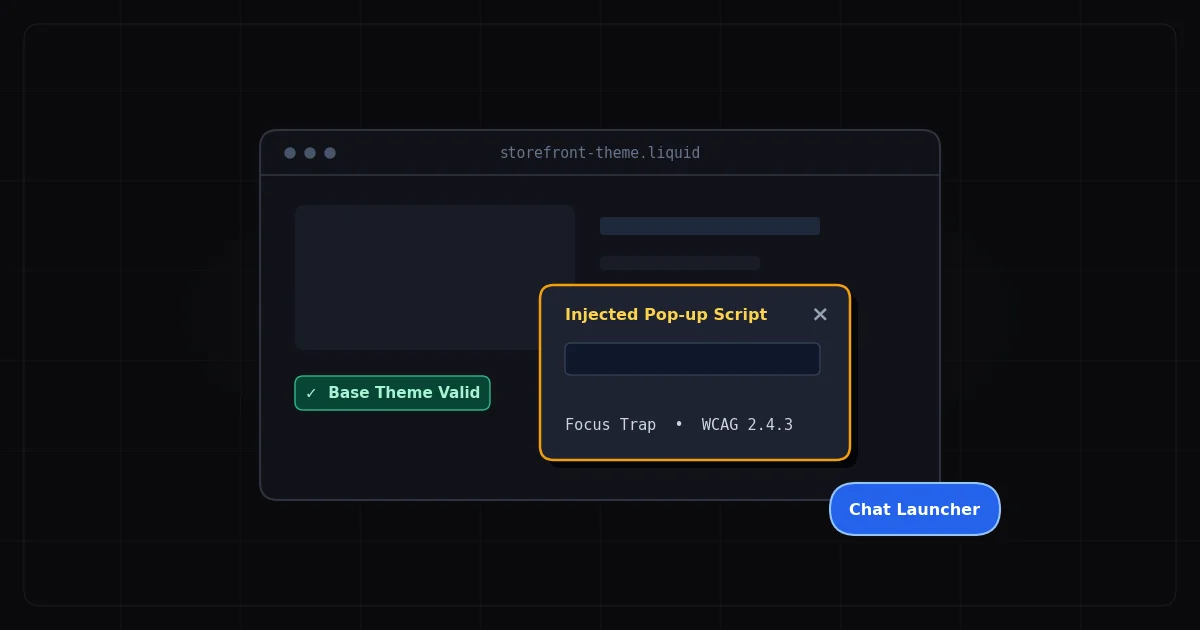
| Quick-view / Modal | No focus trap, no Escape key, background interactive | 2.1.2 | High — requires JS rewrite |
The fastest way to check screen reader compatibility is a combination of automated scanning and manual testing.
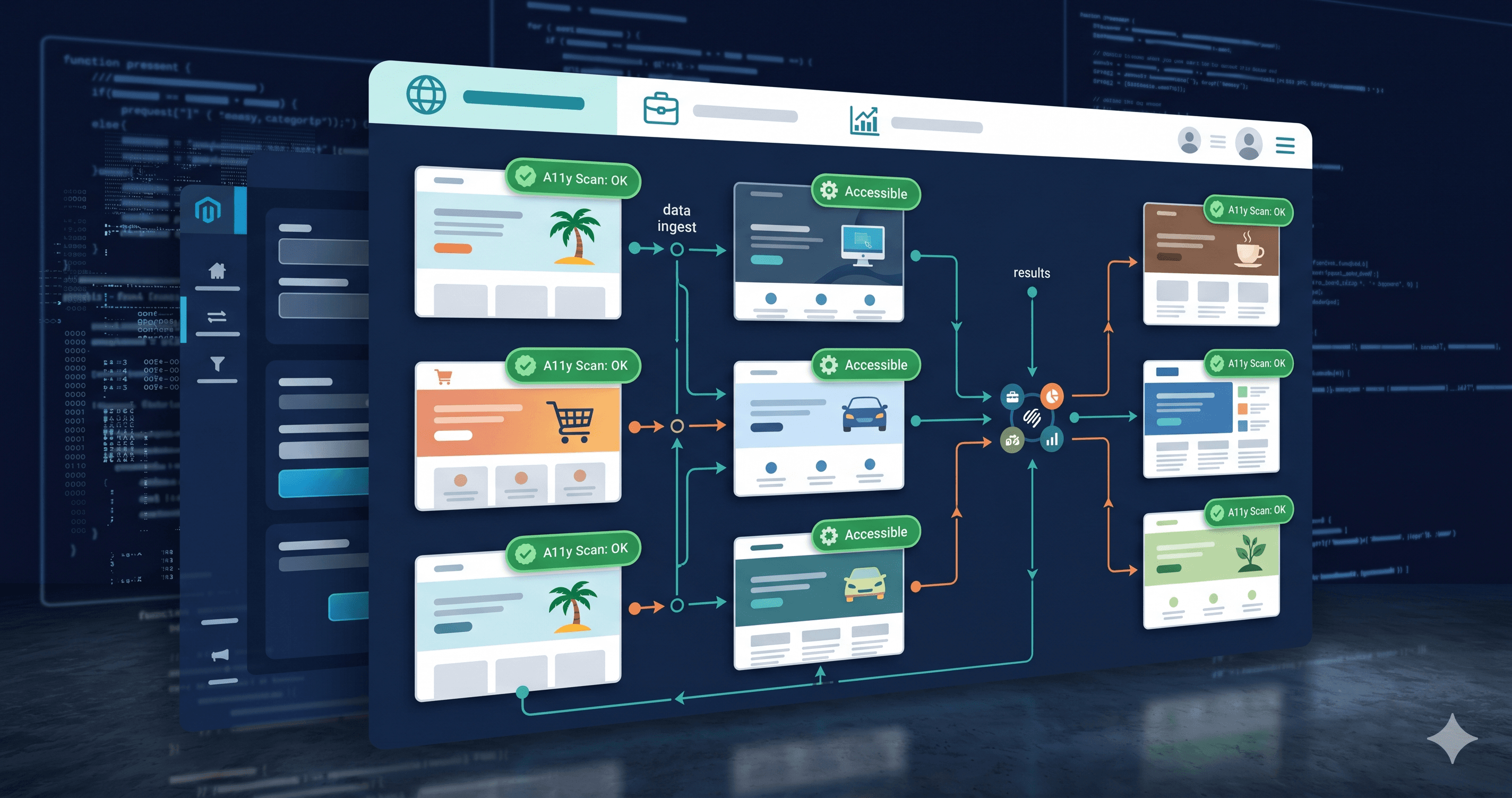
Automated scanning first: Paste your Webflow URL at adaguard.io — no signup required. The scanner renders your Webflow site in a real browser (executing all JavaScript interactions), then runs 23 automated check categories covering images, color contrast, forms, headings, links, ARIA, keyboard access, and more. This catches the systematic violations — missing alt text across all CMS images, heading hierarchy failures, form label issues.
ADAGuard reaches approximately 78% automated WCAG 2.2 AA coverage (43 of 55 criteria). It also runs bonus WCAG AAA checks on every plan, including the Free tier.
Manual screen reader testing second: After fixing automated findings, test with a real screen reader. NVDA (free, Windows) and VoiceOver (built into macOS and iOS) are the most important. Navigate your site using only the keyboard — Tab, arrow keys, Enter, Space. Try to complete your most important user flow (sign up, contact, purchase). Note anywhere focus gets lost, where announcements are confusing, or where you can't proceed without a mouse.
Authenticated pages: If your Webflow site has a members area (via Webflow Memberships or a third-party integration like Memberstack), standard scanners can't access it. ADAGuard's authenticated scanning logs in with real credentials and scans member-only pages — the ones paying customers use, and the ones that represent your highest legal exposure.
The 30-Second Fix
Screen reader compatibility problems on Webflow sites are predictable and fixable. The first step is knowing exactly what you're dealing with.
Paste your Webflow URL at adaguard.io for an instant, no-signup compliance scan. You'll get a complete report of WCAG violations, severity ratings, affected elements, and links to fix guidance — the information you need to make your Webflow site actually work for the 7.6 million Americans with visual disabilities, and the many more using assistive technology for other reasons.
The scan takes under a minute. The legal exposure of not scanning can last years.</ul></div></a></div>