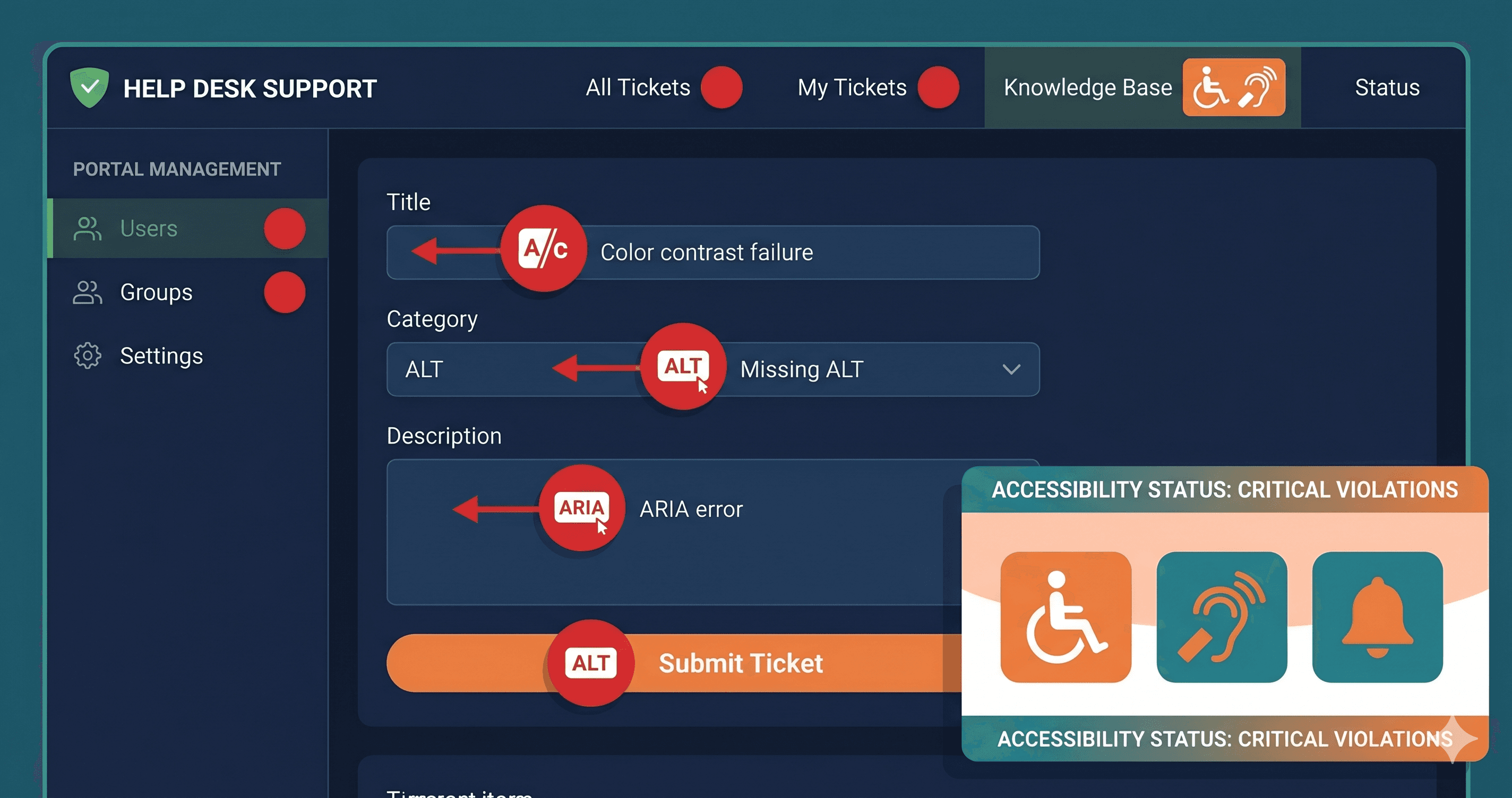
Unlabeled form inputs in a Zendesk ticket submission form are among the top elements cited in ADA demand letters against SaaS businesses — and your customized Help Center almost certainly has at least one. A support portal that looks polished and professional can still trap keyboard users, confuse screen readers, and fail every WCAG 2.1 criterion that plaintiff attorneys use as their checklist.
In 2025, 4,800+ ADA web accessibility lawsuits were filed in the US (UsableNet, 2025 mid-year report), a significant increase over the prior year. SaaS-based customer portals and help centers are increasingly in the crosshairs — particularly for companies serving government entities, healthcare organizations, or any sector where assistive technology users form a significant portion of the customer base. ADA Title II compliance deadlines for government entities using third-party tools hit in 2026, which means a Zendesk Help Center embedded in a city government or hospital system's support infrastructure is now a direct compliance liability.
Zendesk's 2025 Accessibility Progress Report acknowledged directly: "Accessibility is an ongoing effort, and issues can slip through our release process." That sentence is the most important thing every Zendesk customer should read. Zendesk audits their own core product code against WCAG 2.2 AA using third-party auditors. They publish Accessibility Conformance Reports (VPATs) and maintain a dedicated accessibility team.
What they do not audit is your deployment.
The moment your team applies a custom Guide theme, embeds a third-party chat widget, configures ticket forms with your own field labels, or adds rich media articles to your knowledge base — the vendor's compliance guarantee no longer applies to your actual portal. You have created a custom software product that requires its own accessibility audit. Most companies deploying Zendesk have never run one.
Where Violations Hide in Zendesk Portals
There are four layers where ADA violations accumulate in Zendesk Help Center deployments. Each one is invisible to the static HTML scanners most teams use for a quick compliance check.
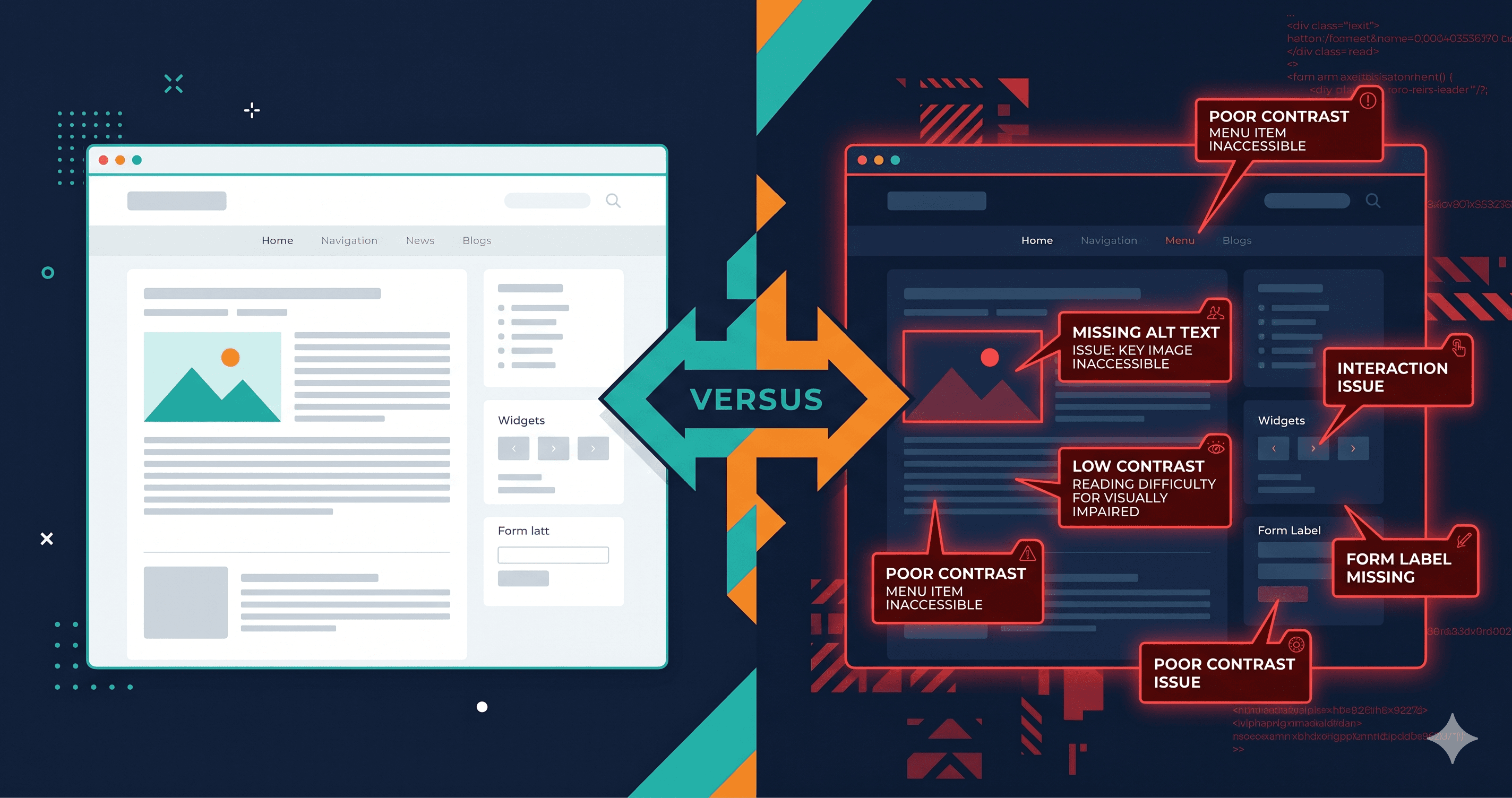
Custom Guide themes are the primary violation source. Zendesk's Guide product exposes full HTML, CSS, and JavaScript control. Developers building branded support portals routinely introduce: insufficient color contrast between text and backgrounds, missing visible focus indicators on interactive elements, non-sequential heading structures (jumping from H1 to H3 for visual sizing reasons), and broken keyboard navigation in sidebar filters and category menus. The WebAIM Million 2025 report found that 79.1% of websites have low-contrast text failures — Help Centers built with brand color palettes are no exception.
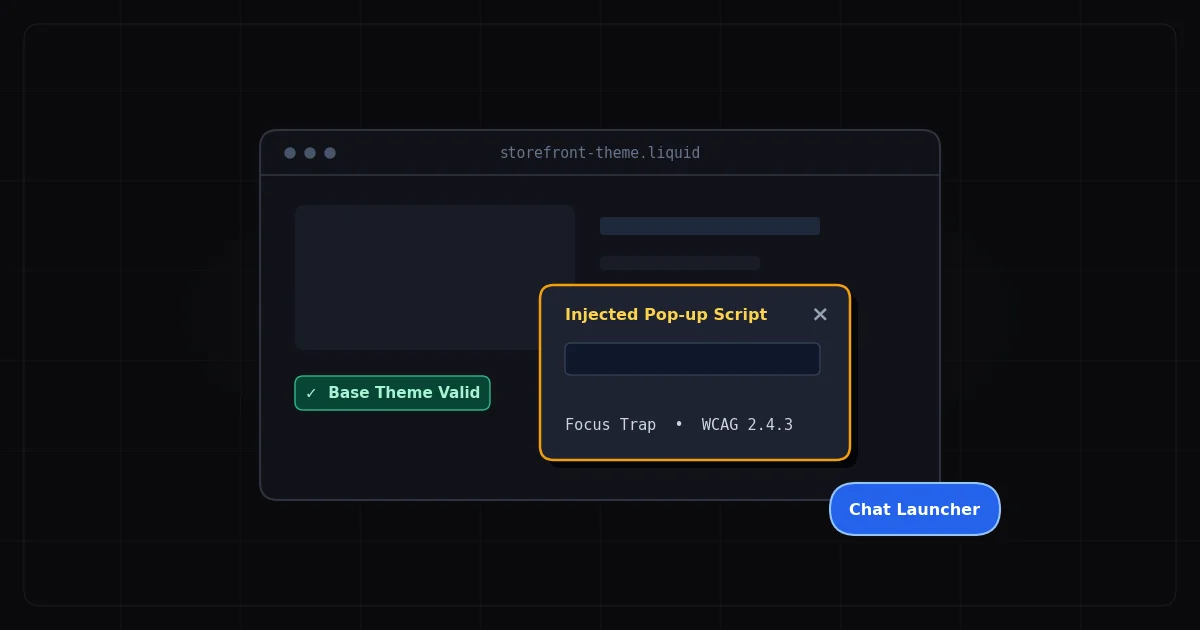
Chat and contact widgets introduce a second violation category. Zendesk's own EAA conformance report for their Web Widget documents areas of partial conformance in ARIA labeling. Third-party chat widgets embedded alongside Zendesk — Intercom, Drift, Freshchat — are frequent sources of keyboard traps, a WCAG 2.1.2 critical violation that means a keyboard-only user cannot close the chat window without killing the browser tab.
Knowledge base content is created by support teams, not developers. Articles published over months or years accumulate missing alt text on screenshots and diagrams, data tables without header row markup, embedded YouTube videos without closed captions, and PDF attachments with no accessible equivalent. These are content-layer violations that no platform update will fix — they require article-by-article remediation.
Ticket submission and feedback forms are configured through Zendesk's admin UI. Custom fields added without accessibility review often lack proper `` associations or use placeholder text as the only labeling mechanism — which disappears once a user starts typing. According to the WebAIM Million 2025 report, 48.2% of homepages have unlabeled form inputs. Support portals configured by non-technical admins face the same structural risk.
The Violations Table: What Live-DOM Scanning Finds
Here is what ADAGuard's live-DOM scanner surfaces on typical Zendesk Help Center deployments:
| Element | Common Failure | WCAG Criterion | Fix Effort |
|---|
| Custom theme headings | Non-sequential heading hierarchy (H1 → H3) | 1.3.1 Info and Relationships | Medium |
| Ticket submission form | Input fields with placeholder-only labeling | 1.3.1, 4.1.2 Name, Role, Value | Easy–Medium |
| Search bar | No persistent visible label, placeholder only | 1.3.1, 4.1.2 | Easy |
| Chat widget close button | Icon-only button with no accessible name | 4.1.2 Name, Role, Value | Easy |
| Knowledge base images | Missing or generic alt text (e.g., "image.png") | 1.1.1 Non-text Content | Easy–Medium |
| Embedded video | Missing captions or audio description | 1.2.2 Captions, 1.2.3 Audio Description | Medium–Hard |
| Custom navigation sidebar | Focus order does not follow visual reading order | 1.3.2, 2.4.3 Focus Order | Medium |
| Form error messages | Errors visible on screen but not announced to screen reader | 3.3.1 Error Identification | Medium |
| Brand color palette | Text contrast ratio below 4.5:1 against background | 1.4.3 Contrast Minimum | Easy |
| Custom dropdown filters | Not keyboard operable, no ARIA role | 4.1.2, 2.1.1 Keyboard | Medium–Hard |
Why Static Scanners Give a False Pass
Most ADA compliance tools — browser extensions, URL checkers, and many SaaS tools — scan static HTML: the page source before JavaScript runs. Zendesk's Help Center renders content dynamically. Navigation elements appear after JS initialization. Search results load via AJAX. Chat widgets inject their DOM after the initial page render. Ticket form fields are conditionally displayed based on ticket type selection.
A static scanner crawls the HTML shell of your Help Center and finds no violations — because the violations exist in the rendered DOM that the scanner never sees.
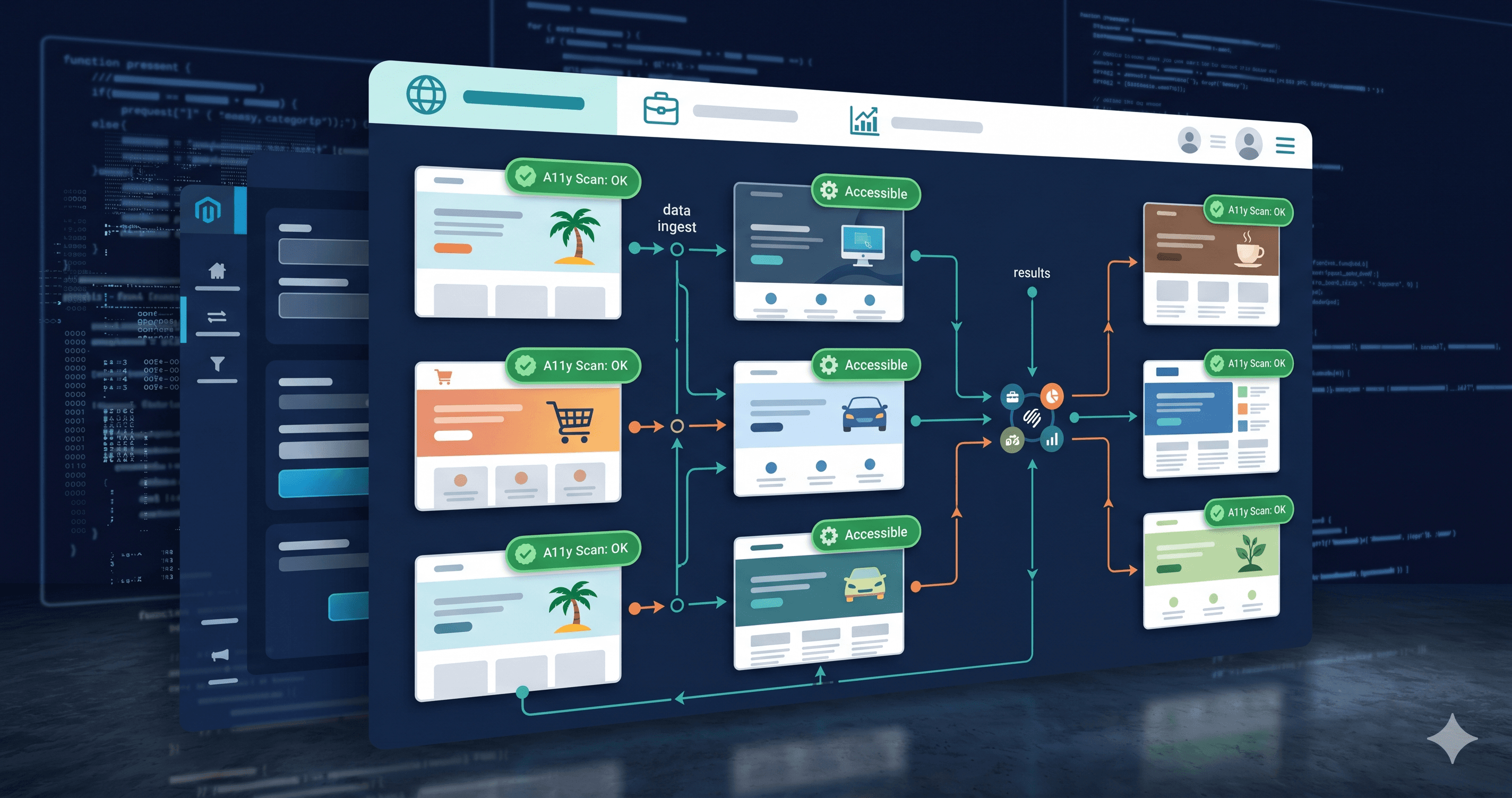
ADAGuard runs live-DOM scans using a real Chromium browser that executes JavaScript, waits for dynamic content to load, and then evaluates the fully rendered page across 50+ WCAG checks from 23 check categories. Because every plan — including Free — uses JavaScript rendering, what ADAGuard sees is exactly what an assistive technology user sees when they interact with your support portal.
The difference matters for Zendesk portals specifically because the highest-risk elements — chat widgets, AJAX search, conditional form fields, dynamically loaded KB article navigation — are all JavaScript-rendered and invisible to static tools.
What EAA Adds to the Risk Picture
The European Accessibility Act came into force on June 28, 2025. Since that date, new digital products and services sold to EU customers must meet WCAG 2.1 AA. If your Zendesk Help Center handles support for EU-based users — even if your company is headquartered in the US — your portal is in scope for EAA enforcement.
Germany implemented the EAA through its BFSG law and has already seen private Abmahnungen (accessibility warning letters) between competitors since August 2025. France issued formal notices to Carrefour, Auchan, and Leclerc in late 2025 for inaccessible e-commerce platforms. The Netherlands' enforcement agency (ACM) can issue fines up to €900,000 for serious violations.
For companies running Zendesk Help Centers with EU customer bases, the combination of US ADA exposure and EAA enforcement makes an accessibility audit of your support portal a business priority, not a compliance checkbox.
What to Do When Your Scan Surfaces Violations
Violations found on your Zendesk portal fall into two actionable buckets:
Violations in Zendesk-controlled code — the Web Widget, core Guide theme framework, native form components — require a support ticket to Zendesk's accessibility team. Include the specific WCAG criterion number from your scan report (e.g., "4.1.2 Name, Role, Value: the chat close button has no accessible name"). Zendesk's policy is to treat accessibility bugs as their highest priority. The criterion number routes your report to the right remediation team.
Violations in your customizations — custom theme CSS and JavaScript, knowledge base article content, embedded third-party widgets — are in your control. Hand the WCAG criterion numbers from your ADAGuard scan report to your developer or content team. Each criterion maps to a specific technical fix. Your developer doesn't need to interpret accessibility guidelines — they need the criterion number and the specific element the scan flagged.
Avoid the temptation to install an accessibility overlay widget on your Help Center as a shortcut. In 2025, the FTC took enforcement action against an overlay vendor for making false compliance claims. Overlay vendors are facing ADA lawsuits of their own. Overlays do not fix underlying DOM violations — they layer a widget on top of a non-compliant foundation and create a legal liability of their own.
The 30-Second Fix
You won't know which specific violations exist on your Zendesk Help Center until you scan the live, rendered portal — including after your chat widget loads, your ticket form initializes, and your knowledge base navigation renders. Paste your support portal URL into ADAGuard and get a prioritized violation report in minutes. No account required for your first scan. The report tells you exactly which elements fail, which WCAG criterion applies, and the difficulty level — so you can hand it directly to your developer or file the right support ticket with Zendesk.