How to Check ADA Compliance in 10 Minutes — Before a Lawsuit Finds You First
Most business owners don't know their ADA compliance status until they get a demand letter. It takes 10 minutes to find out. Here's a step-by-step process — automated scan, keyboard test, form audit, and score interpretation — no tech background required.
Most business owners find out their website has ADA violations one way: a demand letter from a law firm.
That letter costs $25,000–$90,000 to resolve — even if you fix everything immediately.
The alternative is a 10-minute check you can do today. Free. No technical background required. And you'll know exactly where you stand, what your risk level is, and what to fix first.
Here's the full process.
First: What "ADA Compliant" Actually Means for a Website
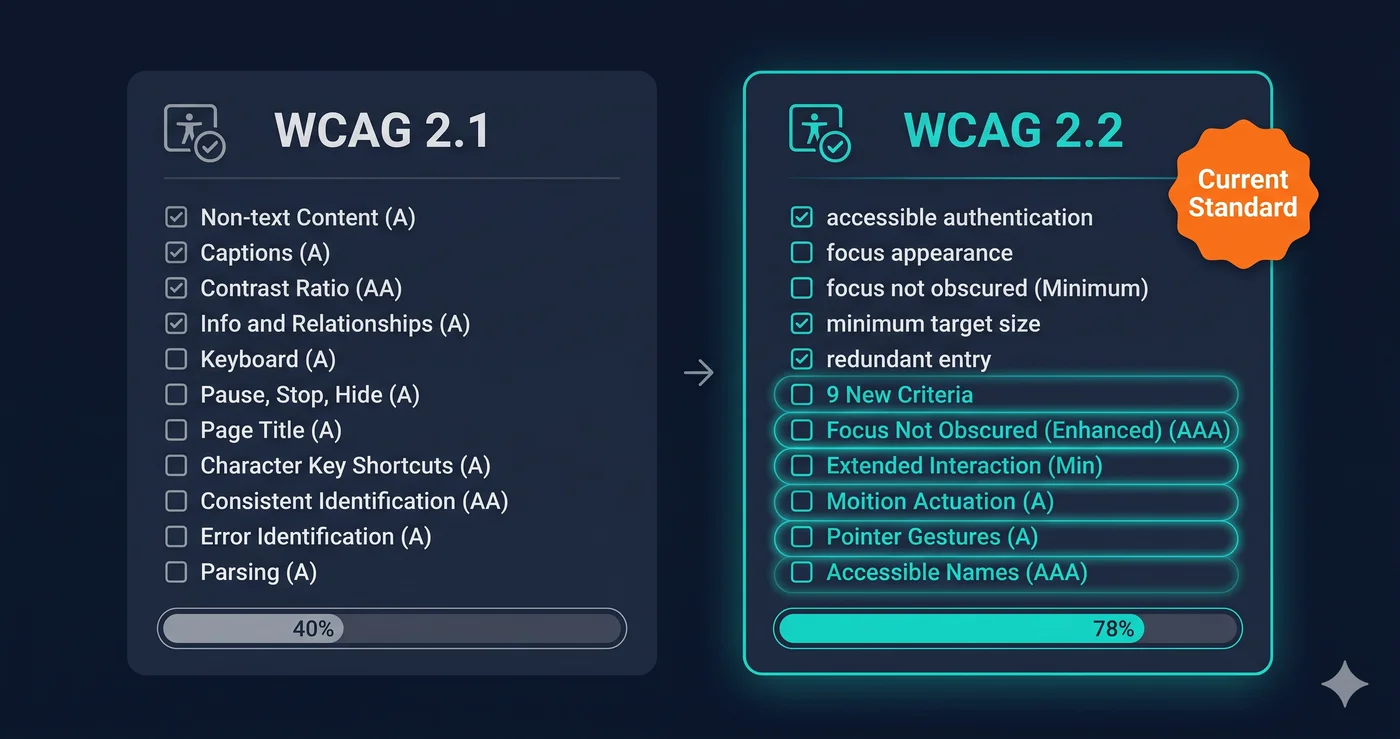
The ADA doesn't have a specific website checklist. But courts have consistently recognized WCAG 2.1 Level AA as the applicable standard — and increasingly, WCAG 2.2 AA.
WCAG stands for Web Content Accessibility Guidelines. It's organized around four principles:
Principle
What It Covers
Perceivable
Alt text, captions, color contrast, resizable text
Operable
Keyboard navigation, no seizure-triggering content, enough time
Compatible with screen readers and assistive technologies
When you check ADA compliance, you're checking whether your site meets the WCAG success criteria under all four principles at Level AA.
> 🔑 Important: Compliance is binary. You either conform at Level AA or you don't. The goal of any check is to find where you don't — so you can fix it before someone else finds it first.
Step 1: Run a Free Automated ADA Compliance Scan (3 minutes)
Start here. An automated scan reviews your entire site against WCAG criteria and flags potential violations ranked by severity.
Violations broken down by: Critical, Warning, Informational
The exact elements causing each issue
Step-by-step fix guidance for each violation
No account needed. No credit card. Free to start.
What automated scans catch:
Images missing alt text
Form fields without labels
Color contrast below WCAG thresholds
Missing page lang attribute
Missing or generic page titles
Broken heading hierarchy
Vague link text ("click here," "read more")
Missing ARIA labels on interactive elements
Focus indicators that aren't visible
What they can't catch (requires manual testing below):
Whether keyboard navigation makes logical sense
Whether screen reader announcements are meaningful
Whether error messages are helpful
Whether content is written in plain language
> ⚠️ Coverage varies by tool. Single-engine scanners (axe-core only) cover a limited subset of WCAG criteria. ADAGuard's multi-module engine reaches ~78% automated coverage (43 of 55 criteria). Even so, the remaining criteria require manual testing for any tool.
Step 2: Interpret Your Compliance Score (1 minute)
Score
Status
Risk Level
90–100
Excellent
Very low — minor issues only
75–89
Good
Moderate — some issues to address
60–74
Fair
Elevated — meaningful violations present
40–59
Poor
High — significant barriers exist
Below 40
Critical
Severe — lawsuit risk is real
Important context: A score is a starting point, not a legal certification. Courts care about the actual barriers on your site, not the number on a dashboard.
Also: a score of 85 does not mean 85% of issues are fixed. It means 85% of the checkable items passed. Many WCAG criteria can't be automated — so your true compliance picture requires the manual steps below.
Step 3: Run the Keyboard Navigation Test (5 minutes)
This is the most important test you can run with no tools at all. Put your mouse aside and navigate your site using only the keyboard.
Key
Action
Tab
Move forward through links, buttons, inputs
Shift + Tab
Move backward
Enter
Activate links and buttons
Space
Activate checkboxes and buttons
Arrow keys
Navigate inside dropdowns, radio groups
What to check on your top 3 pages:
✅ Can you reach every button, link, and form field by pressing Tab?
✅ Is there a visible highlight/outline showing where focus is at every step?
✅ Can you complete your main user flow (purchase, sign-up, contact) without touching the mouse?
✅ Are there any "keyboard traps" where pressing Tab doesn't move you forward?
If any of these fail — you have a keyboard accessibility violation. This category appears in ~45% of ADA website lawsuits.
> 💡 Quick check right now: On your homepage, press Tab five times. Can you see exactly where focus is after each press? If you can't — that's a WCAG 2.4.11 violation (and one of the most common ADA lawsuit triggers).
Step 4: Test with a Screen Reader (5 minutes)
Approximately 7.6 million Americans have a visual disability (American Community Survey), and a significant portion navigate the web using a screen reader. This is the manual test that most closely matches their actual experience — and it catches failures that automated scanners rate as passing.
You don't need professional accessibility training to run a basic screen reader test:
On Mac: Enable VoiceOver (Cmd+F5). Navigate your home page, product page, and checkout flow using VoiceOver commands.
On Windows: Download NVDA (free at nvaccess.org). Test the same key pages with NVDA and Firefox.
Listen for: Are images announced with meaningful descriptions — not just "image" or the filename? Are form fields announced with their labels? Are error messages announced automatically when a form fails? Are buttons described by what they do, not just "button"?
Screen reader testing reveals label quality, meaningful link text, and ARIA implementation errors that technically pass syntax checks but behave incorrectly in practice — the exact gap between "no errors flagged" and "actually usable."
Step 5: Check Your Forms (3 minutes)
Forms are the highest-risk surface on most websites — they're where your most important conversions happen and where the most violations occur.
For each form on your site, verify:
Labels: Every input must have a visible label element linked to it. Placeholder text is NOT a label — it disappears when users start typing.
Step 7: Check Your Images, Videos, and Third-Party Widgets (3 minutes)
Images: Does every meaningful image have an alt attribute describing what it shows? Ask: "If this image disappeared, what would sighted users lose?" Your alt text should convey that information.
Decorative images (dividers, backgrounds, pure aesthetics) should use alt="" — so screen readers skip them.
Videos: Pre-recorded videos need:
Accurate, synchronized captions (not just auto-generated YouTube captions)
A text transcript
Audio description if there's meaningful visual content not covered in the audio
PDFs: PDFs linked from your site must also be accessible. PDFs created by printing to PDF from Word or InDesign are often completely inaccessible — they're essentially images with no readable text layer.
Third-party widgets: Live chat buttons, cookie consent banners, newsletter popups, and review widgets are some of the most frequently cited accessibility failures in demand letters — and they're often beyond your direct code control. Check them anyway. Courts don't grant liability exceptions for third-party code just because you didn't write it yourself; you chose to put it on your site, so it's in scope for your compliance check.
What to Do With Your Results
Priority 1 — Fix Critical issues first.
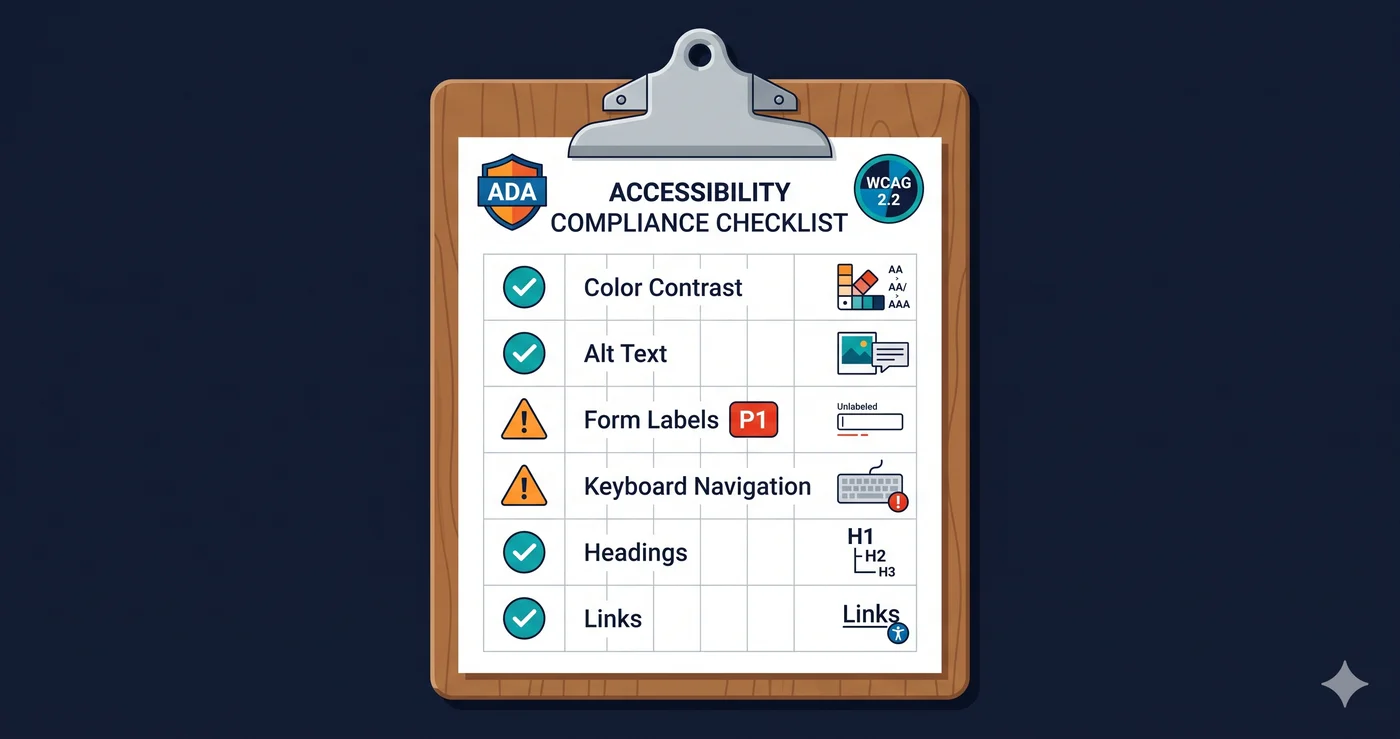
Missing alt text, unlabeled forms, keyboard failures, and very low color contrast are: the most common, the most significant barriers for users, and the most frequently cited in lawsuits.
Priority 2 — Document everything.
Date of scan, score, list of issues found, fixes made, date of fixes. This documentation is your evidence of good-faith remediation if you ever face a legal complaint.
Priority 3 — Set up ongoing monitoring.
Websites change constantly. New pages, new features, new developers = new violations. Schedule monthly automated scans at minimum. → See how to build a monitoring workflow
Priority 4 — Keep dated scan reports as documentation.
Once your site reaches strong compliance, a dated scan report is your evidence of that status. ADAGuard generates a dated report with each scan — not a certificate of legal compliance (no automated tool can guarantee that), but a documented record of good-faith monitoring.
FAQs
"Our developer says we're WCAG compliant. Is that enough?"
No. Developer judgment isn't a substitute for testing with actual assistive technologies. Even experienced accessibility engineers use automated tools and screen readers to verify. You need both.
"We installed an overlay widget. Are we covered?"
No. Courts have ruled that overlay widgets (one-line-of-code "instant compliance" plugins) are not an adequate defense. Many actively create new barriers for screen reader users. Don't rely on them.
"We're a small business. Do we really need to worry?"
Yes. Serial litigation firms target algorithmically — they don't filter by company size. Small businesses are often preferred targets because they're more likely to settle quickly.
"How often should we re-scan?"
Monthly at minimum. After every major site update or deployment. ADAGuard supports scheduled daily, weekly, or monthly scans.
"What score counts as 'passing'?"
Legally, there's no magic number. Compliance is about actual barriers, not scores. But a score of 90+ means you've eliminated most automated-detectable violations. Combine that with passing the manual tests above, and your risk profile is meaningfully reduced.
Share This (Tweet-Ready Lines)
> "Most business owners find out their site has ADA violations from a $50,000 demand letter. The check takes 10 minutes and is free. Tab through your homepage right now."
> "Placeholder text is NOT a form label. It disappears when users start typing and isn't read reliably by screen readers. This is cited in 60% of ADA website lawsuits."
> "Automated accessibility tools catch 30–40% of WCAG violations. The other 60–70% require manual testing. You need both."
Enter your URL. Get your score in 90 seconds. See every violation ranked by lawsuit risk with exact fix instructions. The check is free. Not knowing isn't.