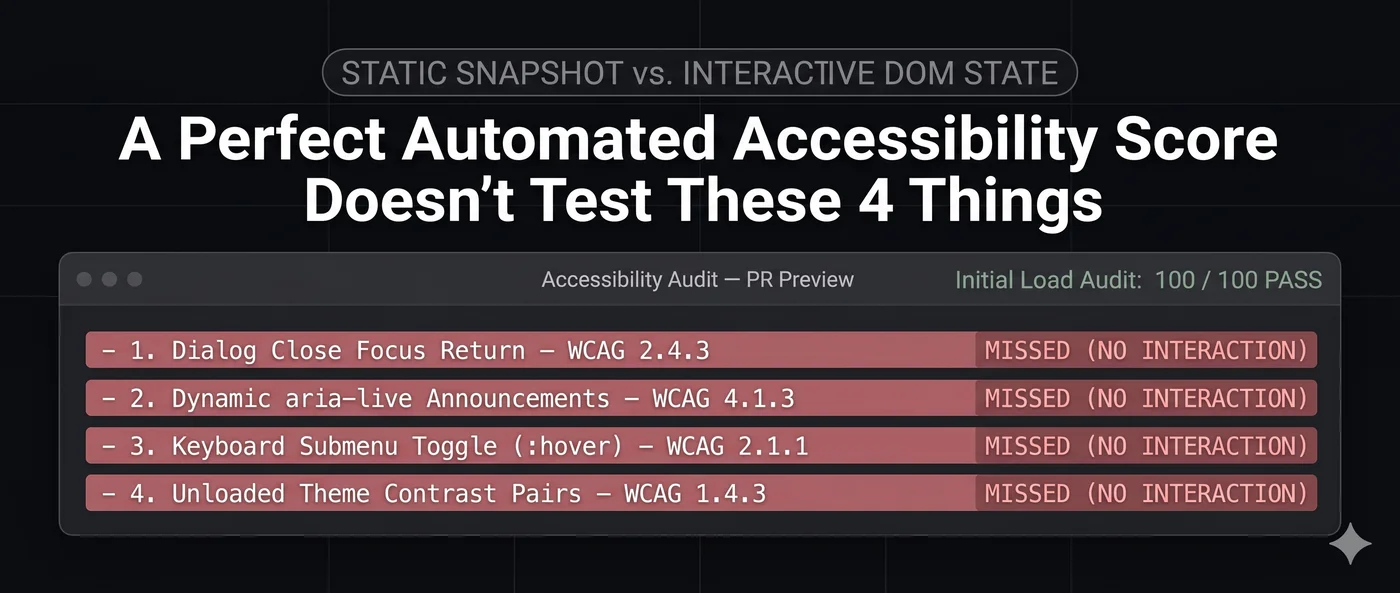
A Perfect Automated Accessibility Score Doesn't Test These 4 Things
An automated accessibility score checks rules against the page as it first loads. Four common failures only appear after someone clicks, types or switches theme — focus after a modal closes, unannounced status messages, hover-only menus and dark-mode contrast. Here is how each one fails and how to fix it.
A green 100 on an automated accessibility audit is a good sign. It means the page has no failures that a rule engine can find in the page as it first loads: images without alt text, inputs without labels, low-contrast text, invalid ARIA.
It doesn't mean a keyboard or screen reader user can get through the page. Automated rules run against one snapshot — one theme, one viewport, before anyone clicks anything — and many WCAG failures only exist after an interaction. Here are four that a perfect score routinely misses, with the criterion each one fails and the fix.
1. Focus that goes nowhere when a dialog closes (WCAG 2.4.3)
A dialog that opens and closes correctly for a mouse user can strand a keyboard user. When the dialog unmounts, the element that had focus is gone, and the browser drops focus back to the top of the document. A screen reader user who pressed "Add to cart" now hears the page from the beginning.
A rule engine looking at the page as loaded never opens the dialog, so it never sees this.
[ JSX ]
// Remember what opened the dialog, and return focus there when it closes.
function useReturnFocus(open) {
  const opener = useRef(null);
  useEffect(() => {
    if (open) {
      opener.current = document.activeElement;
    } else if (opener.current) {
      opener.current.focus();
      opener.current = null;
    }
  }, [open]);
}
While the dialog is open, keep focus inside it — the native `` element opened with showModal() does that for you, and closes on Escape. More patterns: managing focus after a modal closes.
2. Status messages nobody hears (WCAG 4.1.3)
"Added to cart", "3 results", "Email already in use" — messages that appear after an action are visible to sighted users instantly. A screen reader announces them only if they're rendered into a live region that was already in the page before the text changed.
[ HTML ]
<!-- In the page from the start, empty -->
<div role="status" aria-live="polite" id="cart-status"></div>
[ JS ]
// Later: change only its text
document.getElementById('cart-status').textContent = 'Added to cart';
A live region created at the same moment as its message is often not announced. Rendering the container on load and updating its text is the reliable pattern. Full walkthrough: announcing dynamic content to screen readers.
3. Menus that only open on hover (WCAG 2.1.1)
A navigation submenu revealed with :hover works for a mouse and does nothing for a keyboard. The links inside exist in the HTML, so a check of the loaded page finds nothing wrong — but a keyboard user can never reach them.
Toggle aria-expanded and hidden from the button's click handler, close the menu on Escape and return focus to the button. A button gets Enter and Space handling for free. Full pattern: accessible multi-level navigation.
4. Contrast in the theme the scan didn't load (WCAG 1.4.3)
An automated scan sees whichever theme the page renders by default. If that's the light theme, the dark theme is never measured — and colours that pass on white often fail on a dark surface.
Measured with the WCAG contrast formula:
Text
Background
Ratio
4.5:1 for body text
#475569 (slate 600)
#FFFFFF
7.58:1
Passes
#475569
#0B0F19
2.53:1
Fails
#2563EB (blue 600)
#FFFFFF
5.17:1
Passes
#2563EB
#0F172A
3.45:1
Fails
The same tokens, a different background, a different result. Check every theme's pairs on purpose — the color contrast checker takes any two colours — and see dark mode and WCAG contrast for a palette that works.
Testing what a score can't see
None of this makes automated checks less useful: they catch the most common failures on every page, quickly, every time you deploy. Pair them with the checks that need interaction:
A keyboard pass. Unplug the mouse. Tab through every flow, open and close every dialog and menu, and watch where focus goes.
A screen reader pass on the flows that matter most — sign-up, checkout, search — with VoiceOver, NVDA or Narrator, all free.
Each theme and breakpoint you ship, not only the default.
ADAGuard runs some interaction checks in a real browser — it presses Tab to find keyboard traps, and measures whether a focused element is hidden behind a sticky header — but no automated tool covers everything above. Scan a page free to see what it finds, and what it tests automatically is listed criterion by criterion.