Your Shopify Theme Passes. Your Apps Might Not: Testing the Live Store
A Shopify theme can pass an accessibility check while the live store fails, because pop-up, review, chat and cart apps add their own markup after the page loads. Here is what to check in each kind of app, the WCAG criteria involved, and how to fix it without uninstalling your stack.
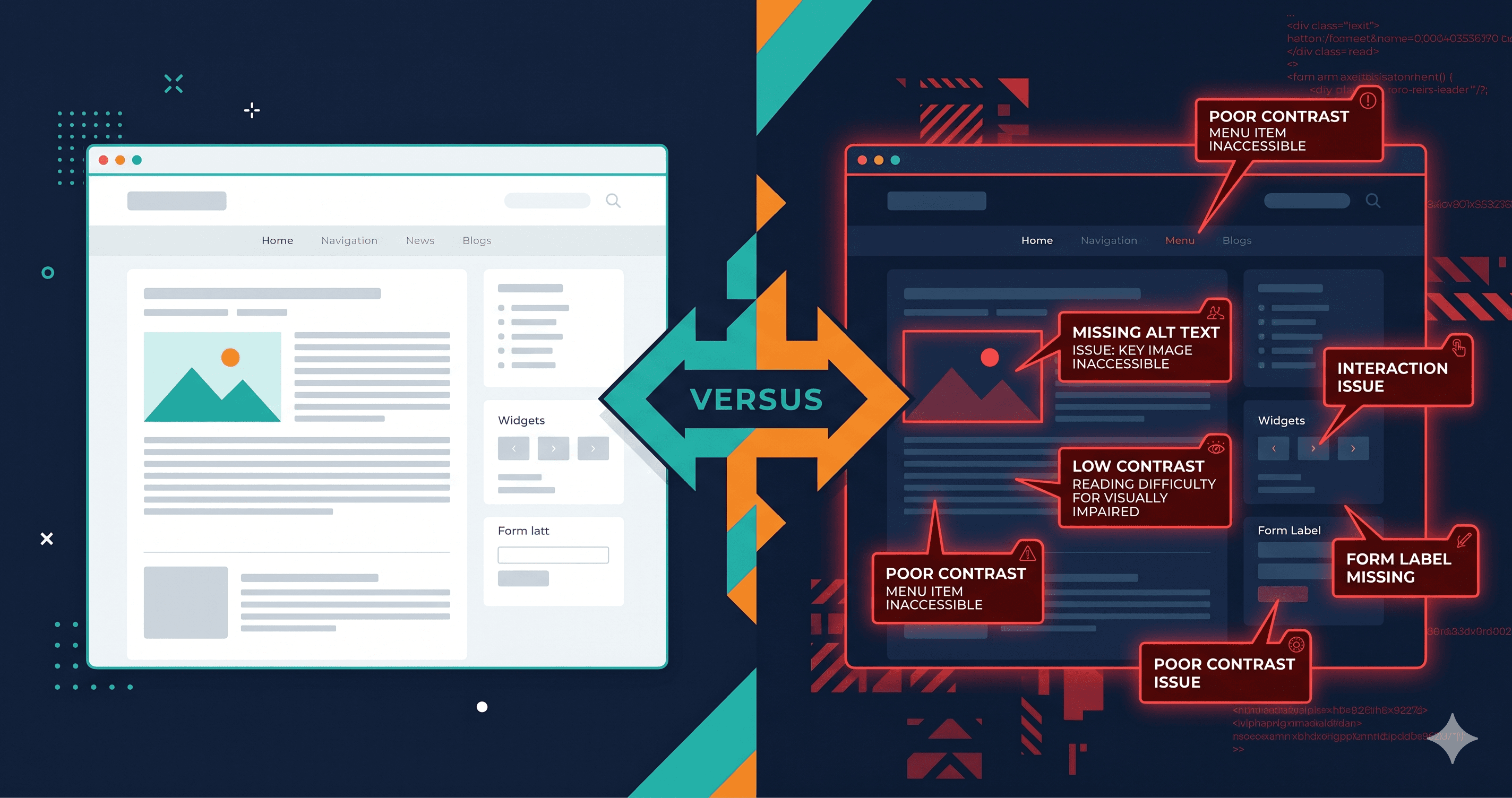
A common sequence: a Shopify store gets an accessibility complaint, the team audits the theme, fixes headings, contrast and labels, checks the theme on a clean preview — and it passes. The live store still fails.
The difference is the apps. Pop-ups, review widgets, chat launchers and cart drawers add their markup after the page loads, from their own scripts. A check of the theme alone never sees them; a visitor always does.
Here's what to look at in each kind of app, the WCAG criterion involved, and how to fix it without removing the app.
Email and SMS pop-ups
A discount pop-up appears a few seconds after the page loads. For a keyboard or screen reader user it needs to behave like a dialog:
Focus moves into it when it opens, and returns to where the visitor was when it closes (WCAG 2.4.3).
It closes with Escape and with a close button that has a name, such as "Close sign-up form" (WCAG 2.1.1, 4.1.2).
Text and buttons meet contrast against your brand colours (WCAG 1.4.3).
Most of this is set up in the app, not your theme: check the app's accessibility or form settings, and choose colours that pass. More detail: Klaviyo pop-ups and WCAG.
Review widgets
Review sections add star ratings, filters, pagination and photo galleries. What to check:
Star-rating and filter controls are real buttons with names a screen reader can read, not unnamed icons (WCAG 4.1.2).
Ratings have a text equivalent, such as "4.5 out of 5 stars" (WCAG 1.1.1).
aria-labelledby and aria-describedby point at ids that exist on the page. When a widget repeats on one page with the same hard-coded ids, those references can point at the wrong element or at nothing (WCAG 1.3.1, 4.1.2). See fixing broken ARIA references.
A slide-out cart is often part of the theme, but apps frequently replace it. When it opens, focus should move into it; while it's open, focus should stay in it; when it closes, focus should return to the button that opened it (WCAG 2.4.3). Quantity changes and "added to cart" should be announced through a live region (WCAG 4.1.3). See cart drawers and screen readers.
Fixing app problems without uninstalling the app
In order of what usually works:
The app's own settings. Many apps have accessibility options, colour settings and layout choices. Start there.
Theme CSS for visual issues. Contrast and focus-ring styles on an app's elements can usually be overridden with CSS in your theme. Keep overrides small and retest after app updates.
A ticket to the vendor. For markup you can't change — missing names, focus handling, broken references — send the vendor the WCAG criterion and the element. Specific reports get fixed faster than "is your app accessible?"
A different app. If a vendor won't fix a blocking issue, that's a real reason to switch.
Avoid scripts that rewrite an app's markup after it loads. They break when the app updates, and they treat the symptom in each visitor's browser rather than the cause.
Test the store as visitors get it
To see what assistive technology meets, test the live page after every app has loaded — not the theme on its own:
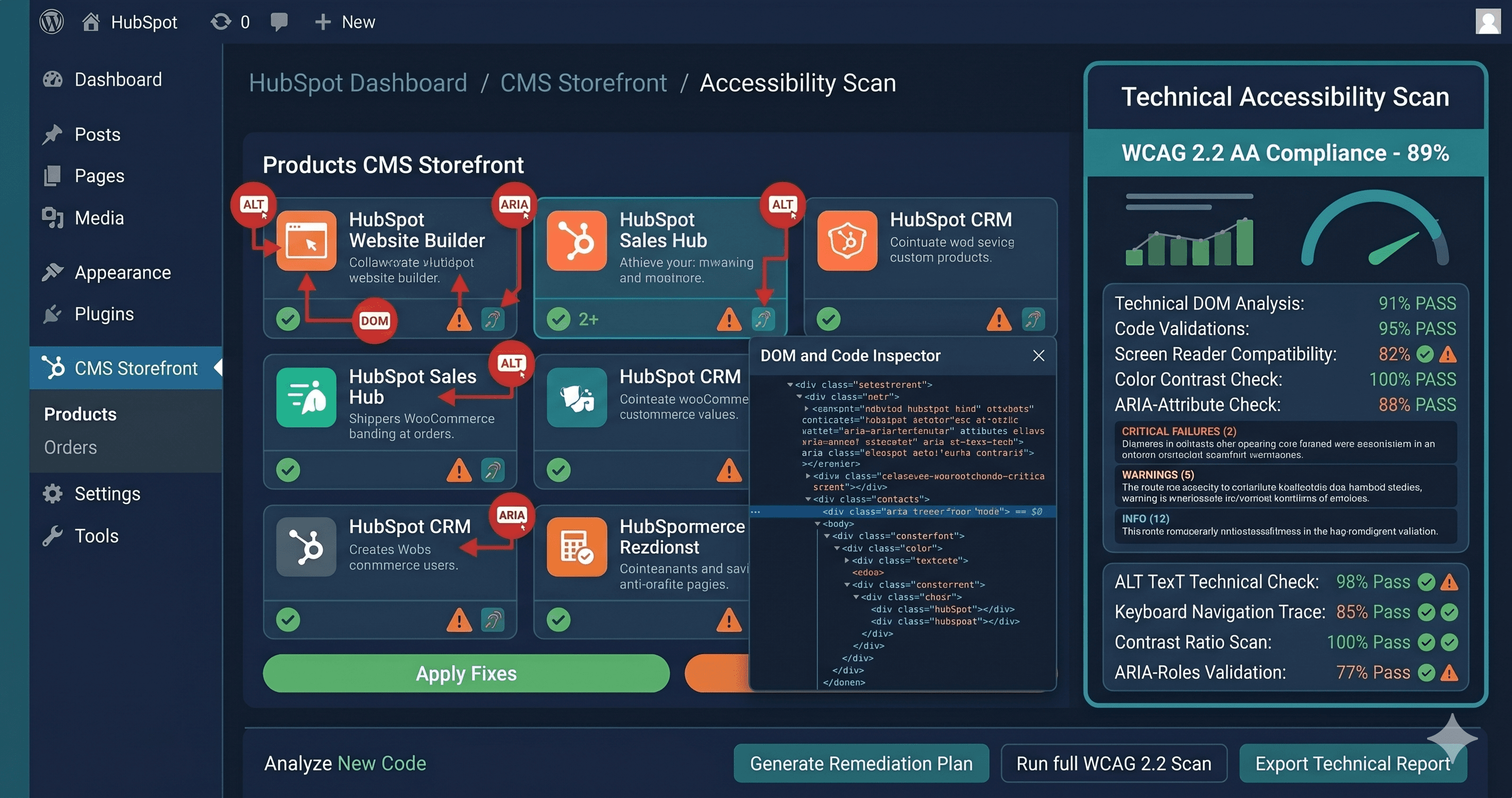
An automated scan of the rendered page. The Shopify accessibility checker loads a page in a real browser, apps included.
A keyboard pass through a purchase: home, product, add to cart, cart, checkout.
A screen reader pass on the same flow with VoiceOver or NVDA.
Apps update on their own schedule, so repeat this after app updates, not only after theme changes.